
2026
HowNow / Personal
Designing Smart Dashboard, an
AI-powered analytics feature

👬🏻 Users
L&D managers, learning analysts, and people operations leads, the people responsible for proving learning impact to the business but rarely trained as data analysts.
They are not data analysts
Most know what they want to measure but not how to query it
They live in spreadsheets
Manual exports, pivot tables, and screenshots pasted into decks are the default workflow
They report to people who want answers fast
Heads of People, CHROs, and exec teams asking questions that need same-day responses
They distrust black-box AI
Comfortable with AI as a helper, sceptical of AI making decisions for them
Designing for AI
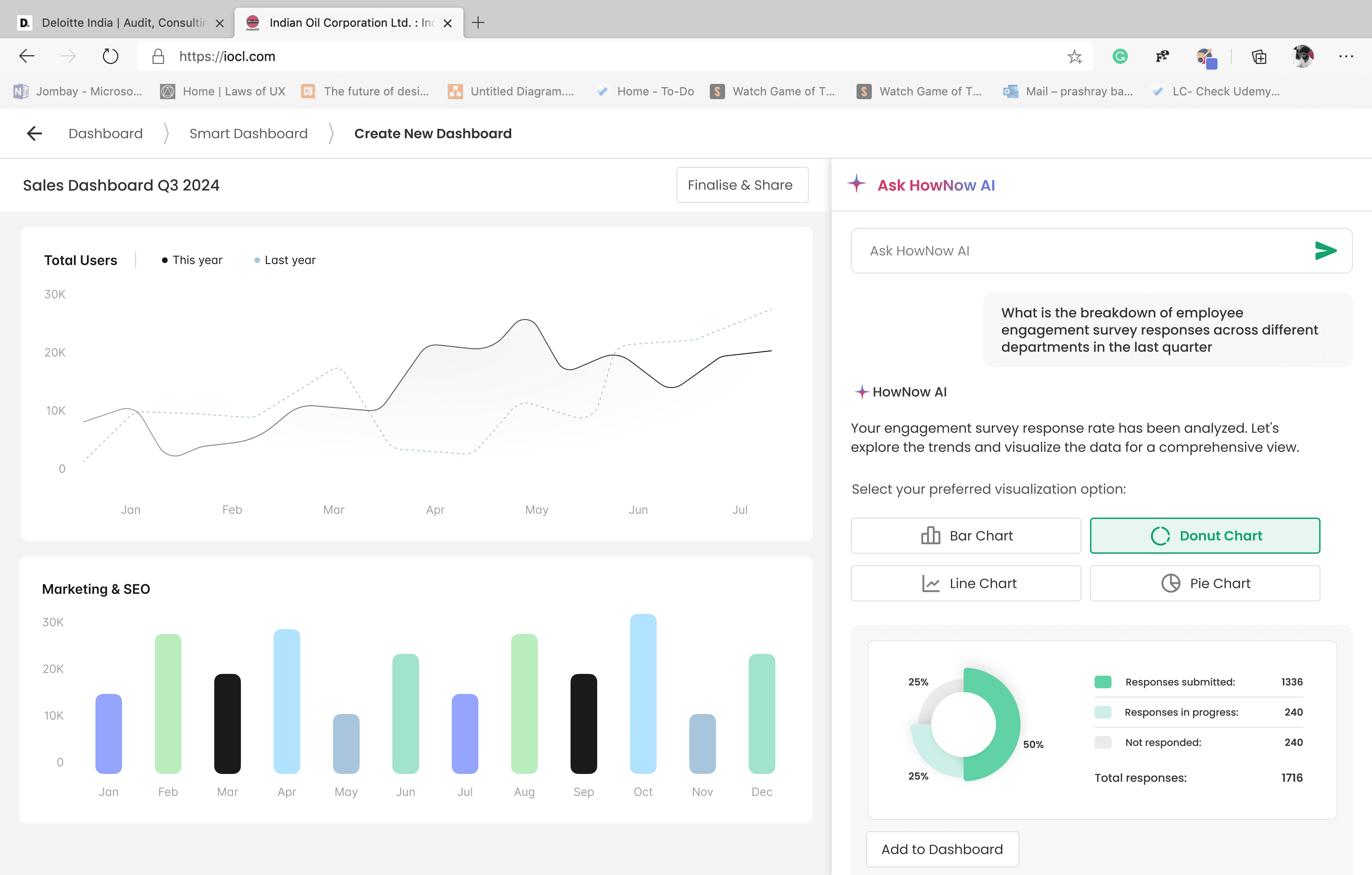
The screens are only half the work. The harder part is the product thinking behind the AI, how it behaves, how the user stays in control, and what happens when it gets things wrong.
AI as collaborator, not generator
The user makes the final call, not the AI.
Each response is a suggestion the user can accept, switch, or skip, never auto-saved.
Trust through visibility
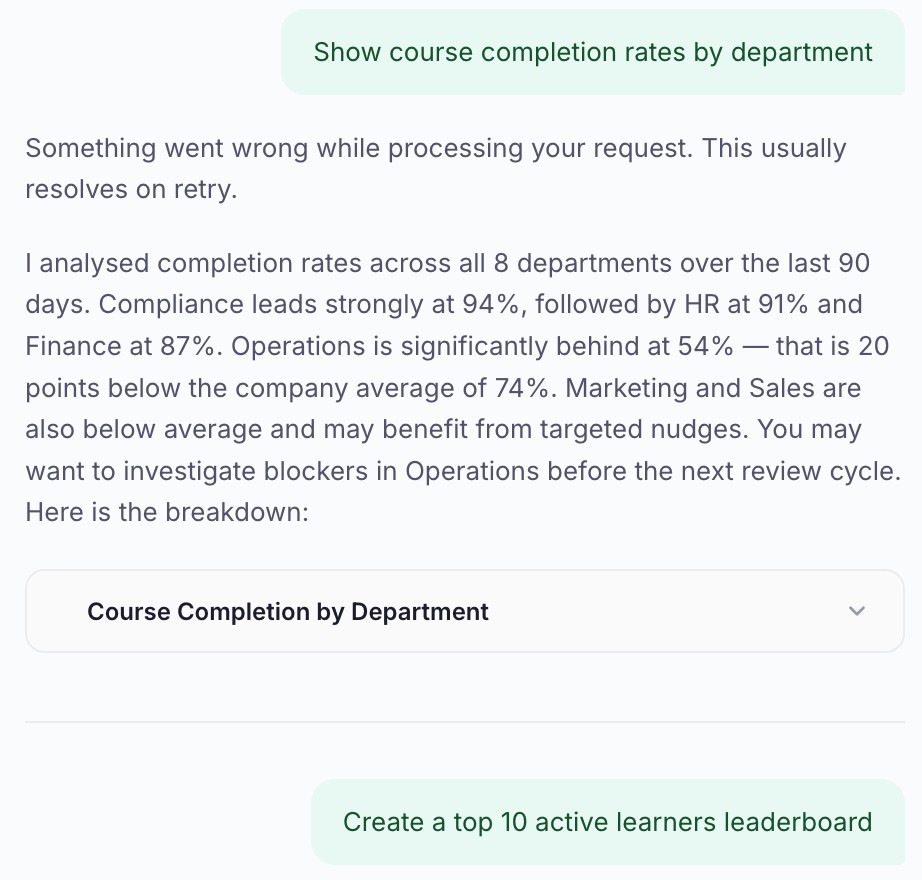
Every AI response shows the data behind it.
Written summary + chart + named data source. No black-box answers.
No regenerate button - by design
Regenerating fixed data produces no new answer.
Chart alternatives are already shown alongside every response. Adding regenerate would duplicate functionality.
Mapping the UX Surface
Before refining screens, I needed to know every state, edge case, and flow the feature had to handle. This is the work that usually gets cut on real product teams, and the work AI is genuinely good at accelerating.
1.
I prompted Claude to
pressure-test the flow.
Given this feature, what are all the states and edge cases I haven't designed for?" - within minutes I had a list it would have taken hours to write solo.
2.
I treated the output as a starting point, not a finished list
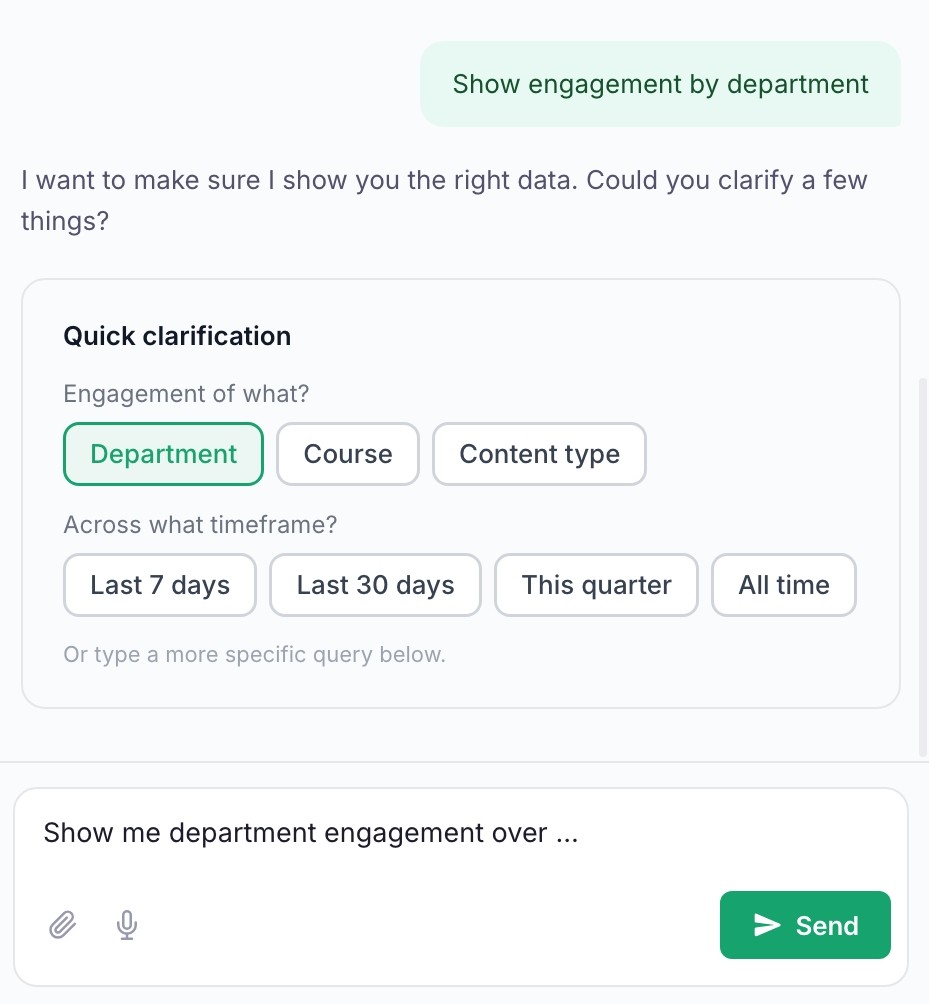
Claude surfaced obvious states (loading, error) and useful edge cases (empty data results, ambiguous queries). I added the ones it missed, voice permission denied, queries that return no chart, and a collapsible chart card so users can hide responses that take up too much space on the canvas.
3.
The result was a complete state map before I touched a single screen
Designing with the full surface in mind from the start meant fewer rewrites later.
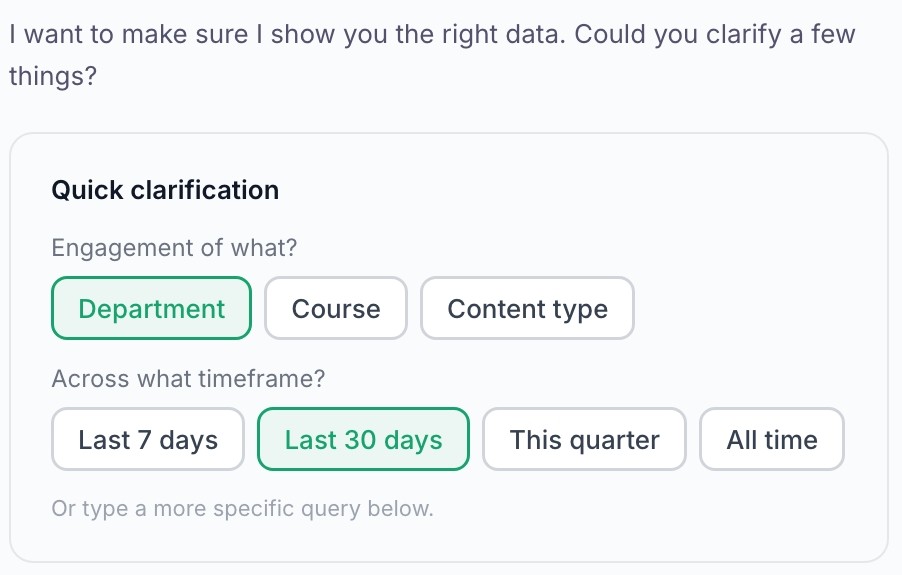
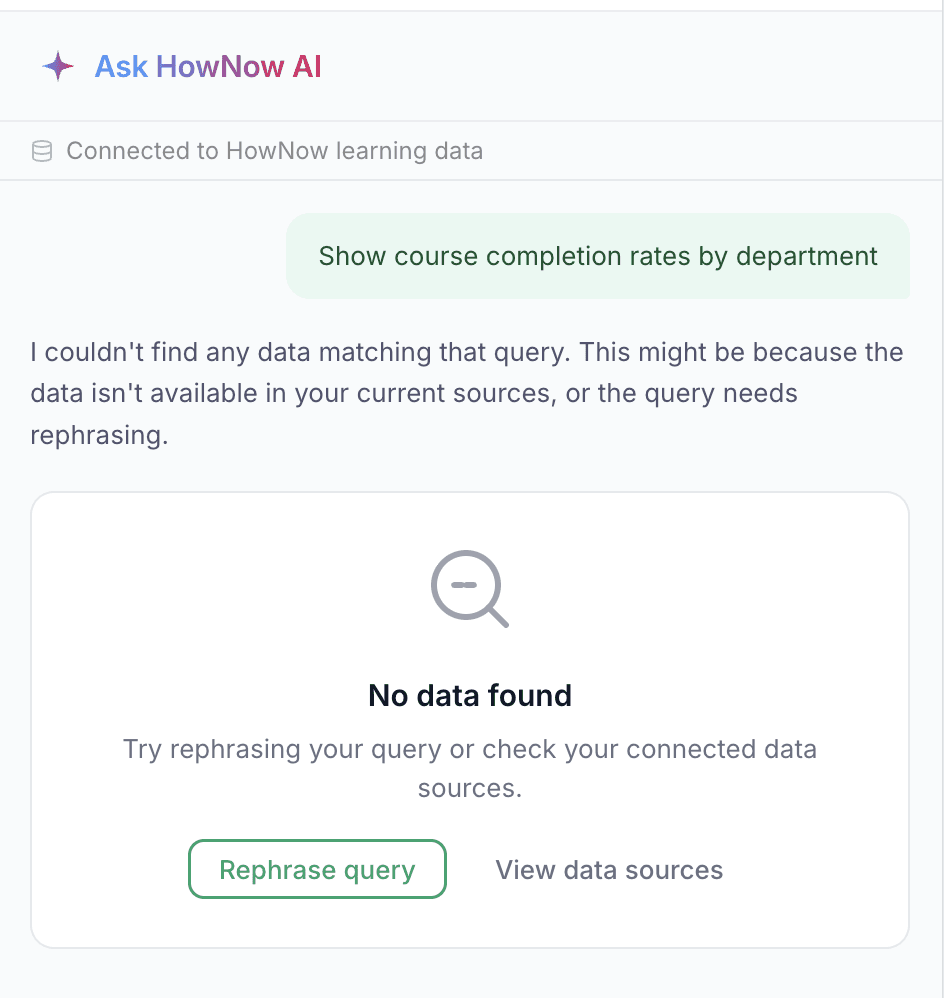
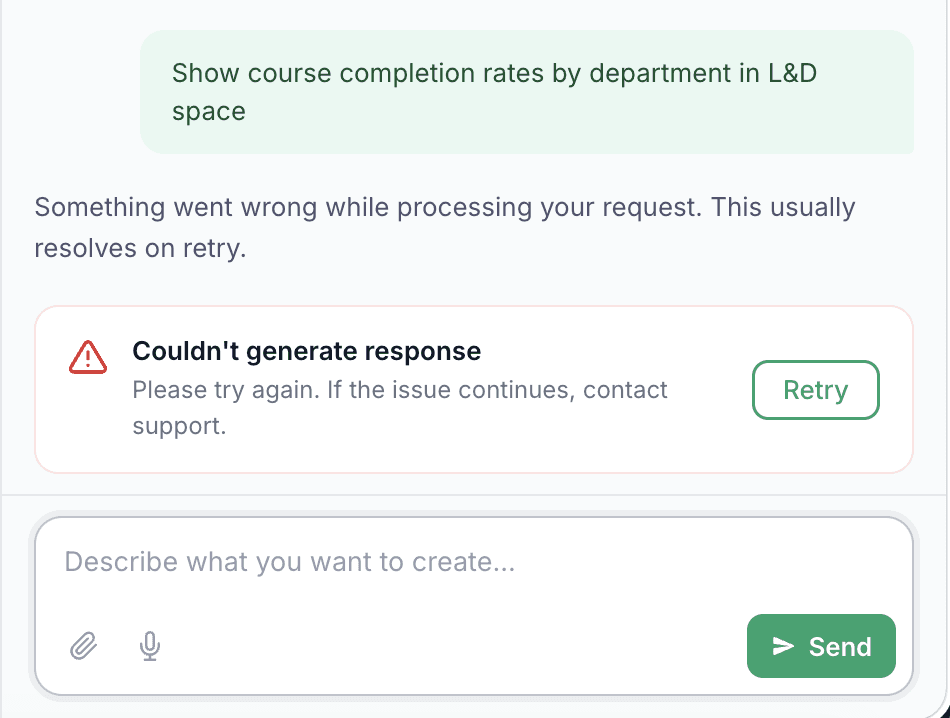
Empty result states needed to feel helpful, not broken - suggested rephrasings and a link to data sources.
Resolved through the chart picker - AI defaults to its best pick, user switches if needed.
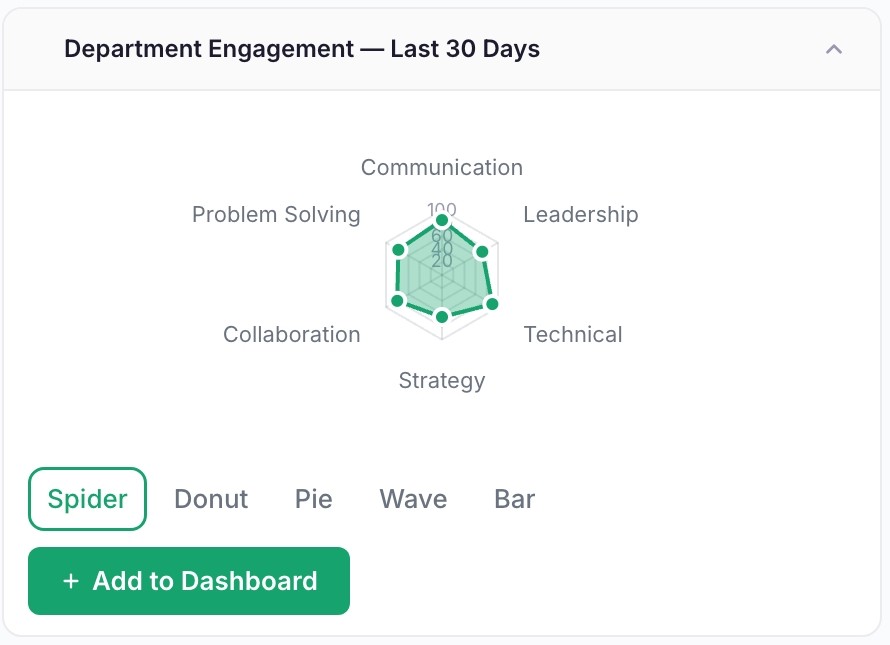
User changes their mind
mid-conversation
Added charts can be removed from the canvas before saving - nothing is locked in until "Save dashboard."
Building the Design System Backwards
Traditional Process:
system → screens → prototype.
Process I followed:
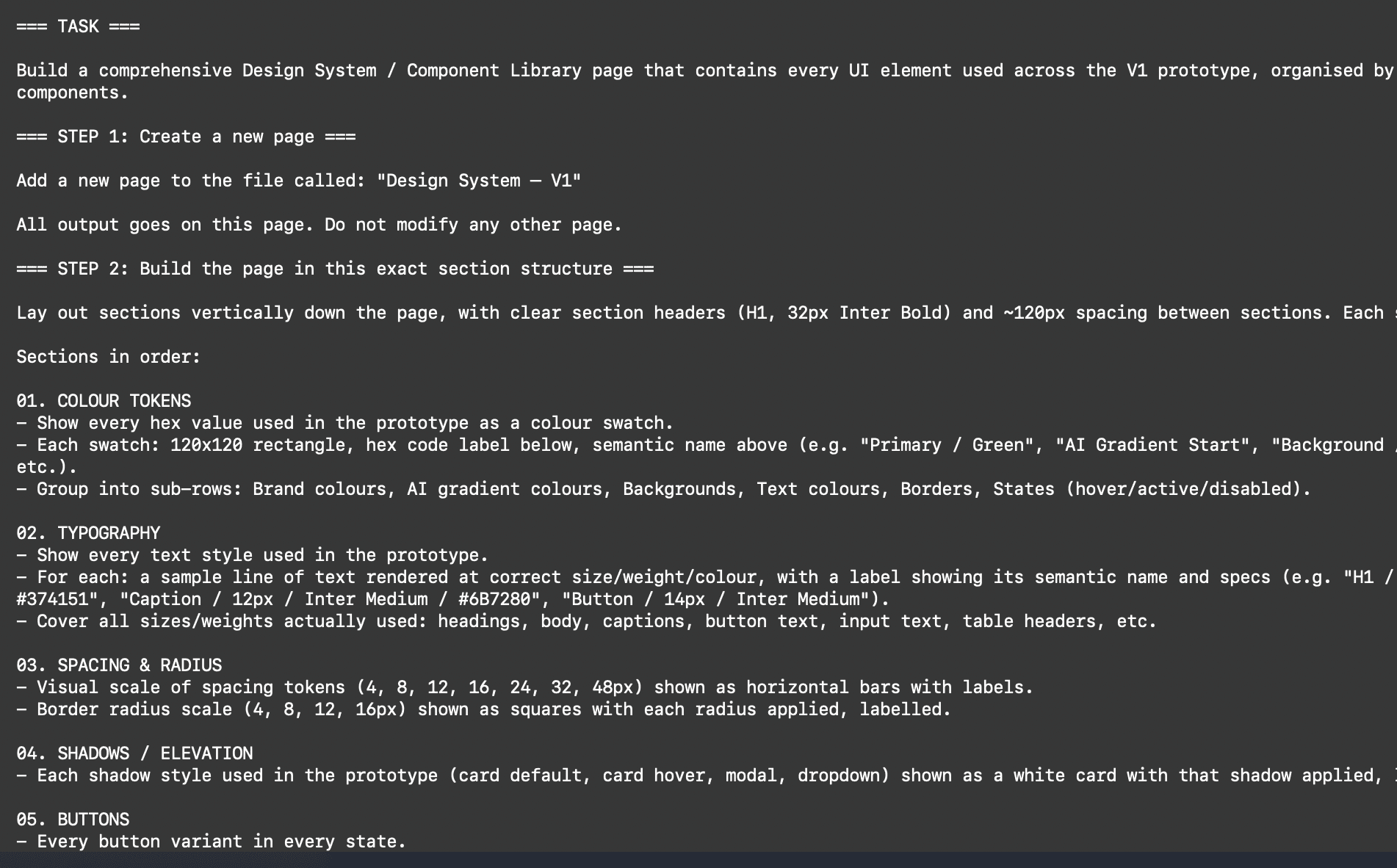
Prompt used to build design system
Claude generated system
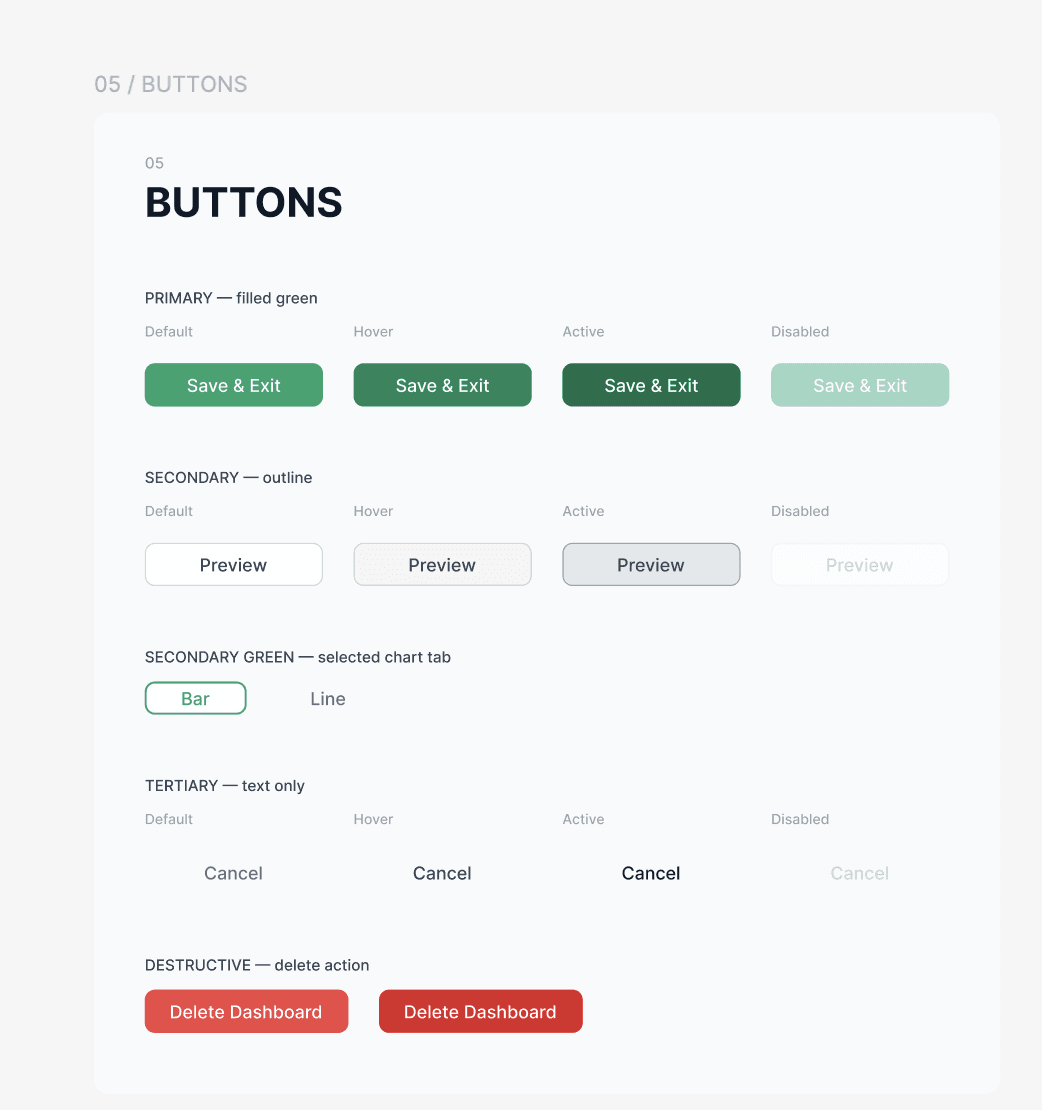
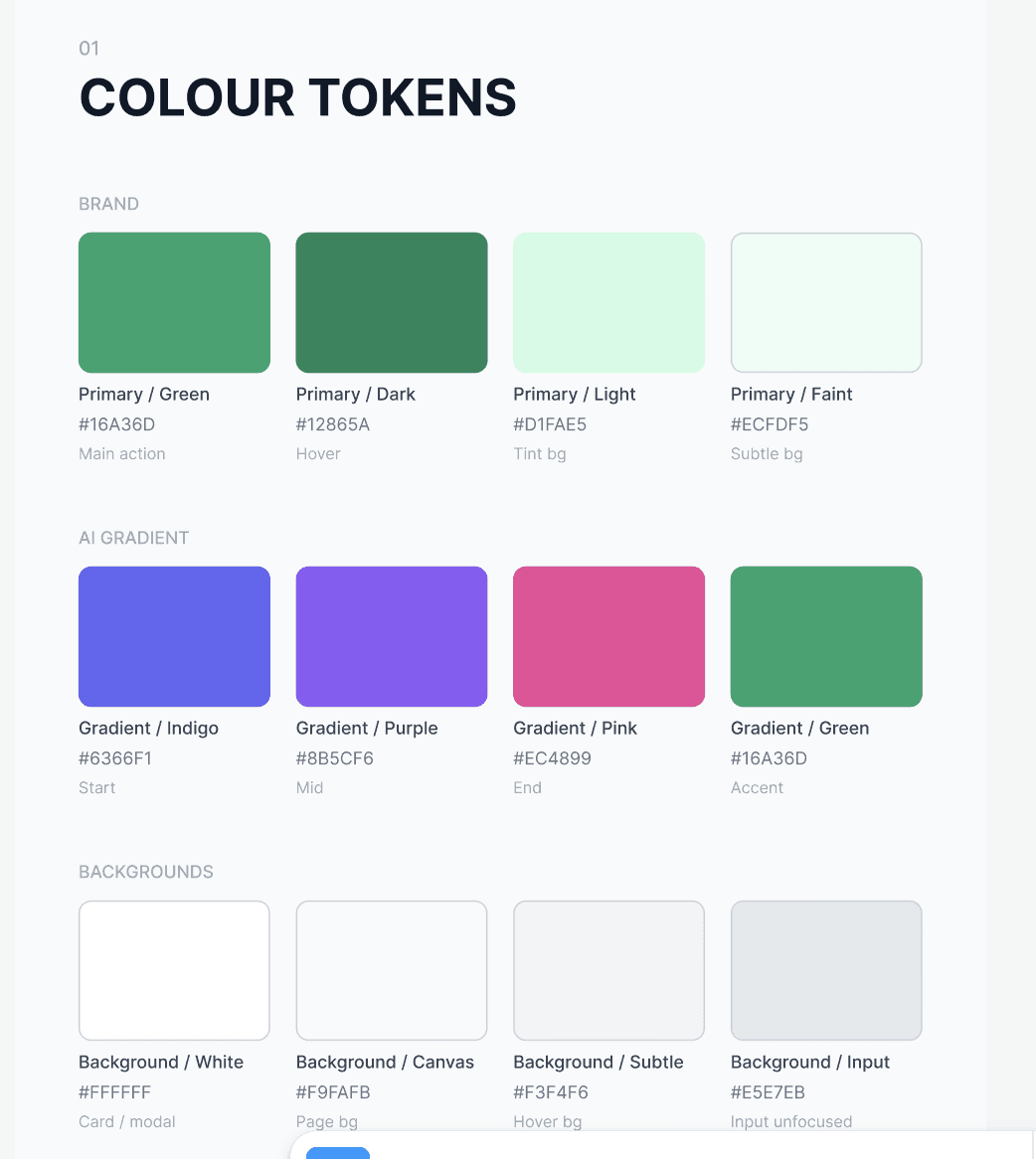
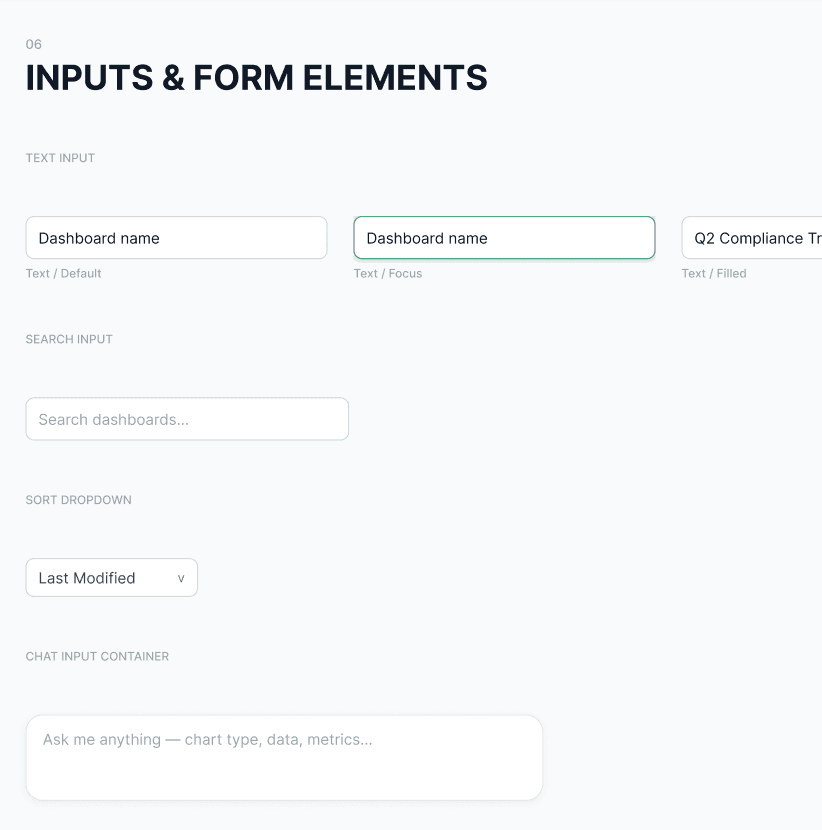
What the system covers
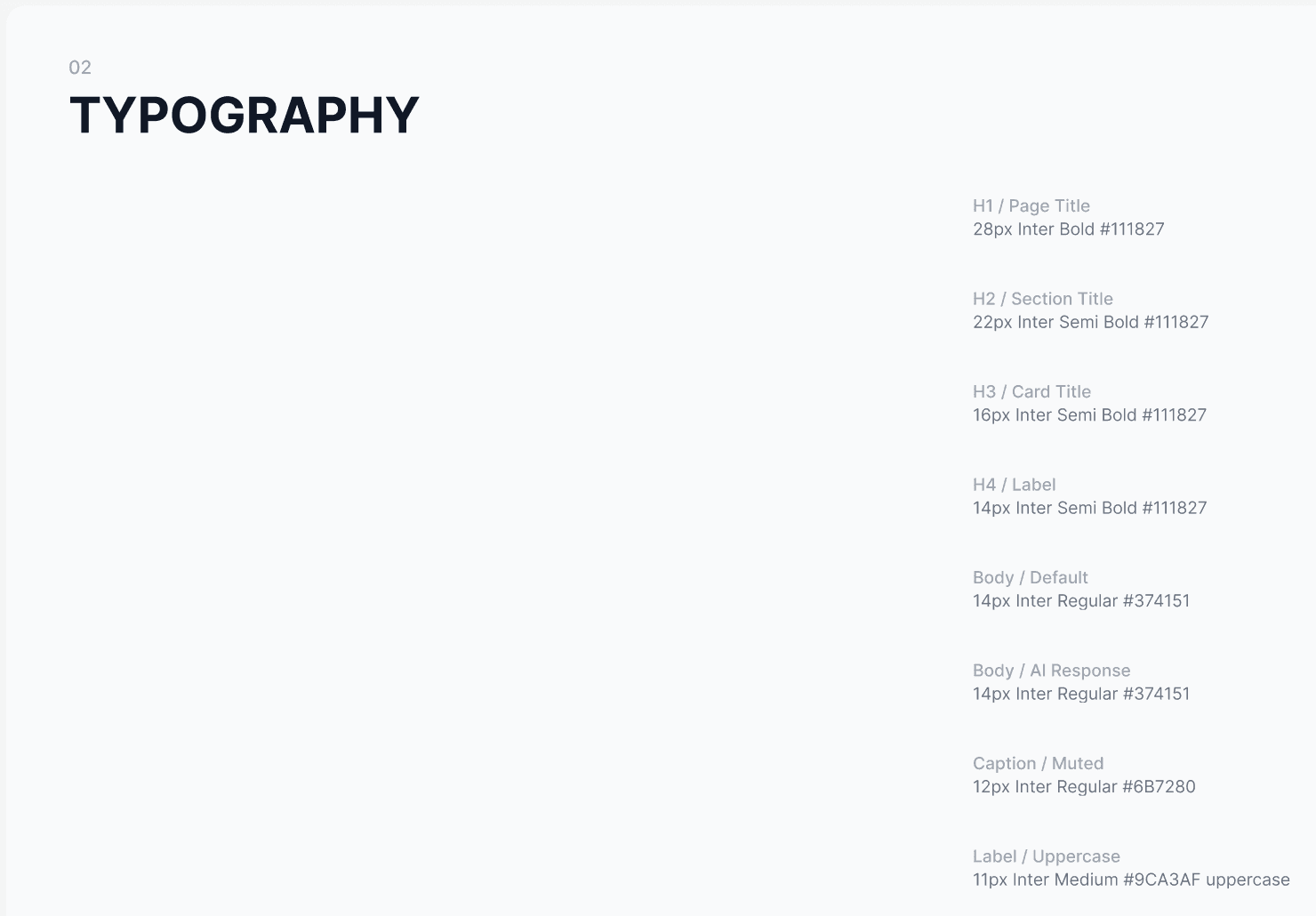
Tokens - colours, typography, spacing, radius, shadows
Components - cards, inputs, buttons, chart containers, AI message blocks, navigation
Patterns - AI conversation flow, dashboard canvas behaviour, modal layering
How AI accelerated this
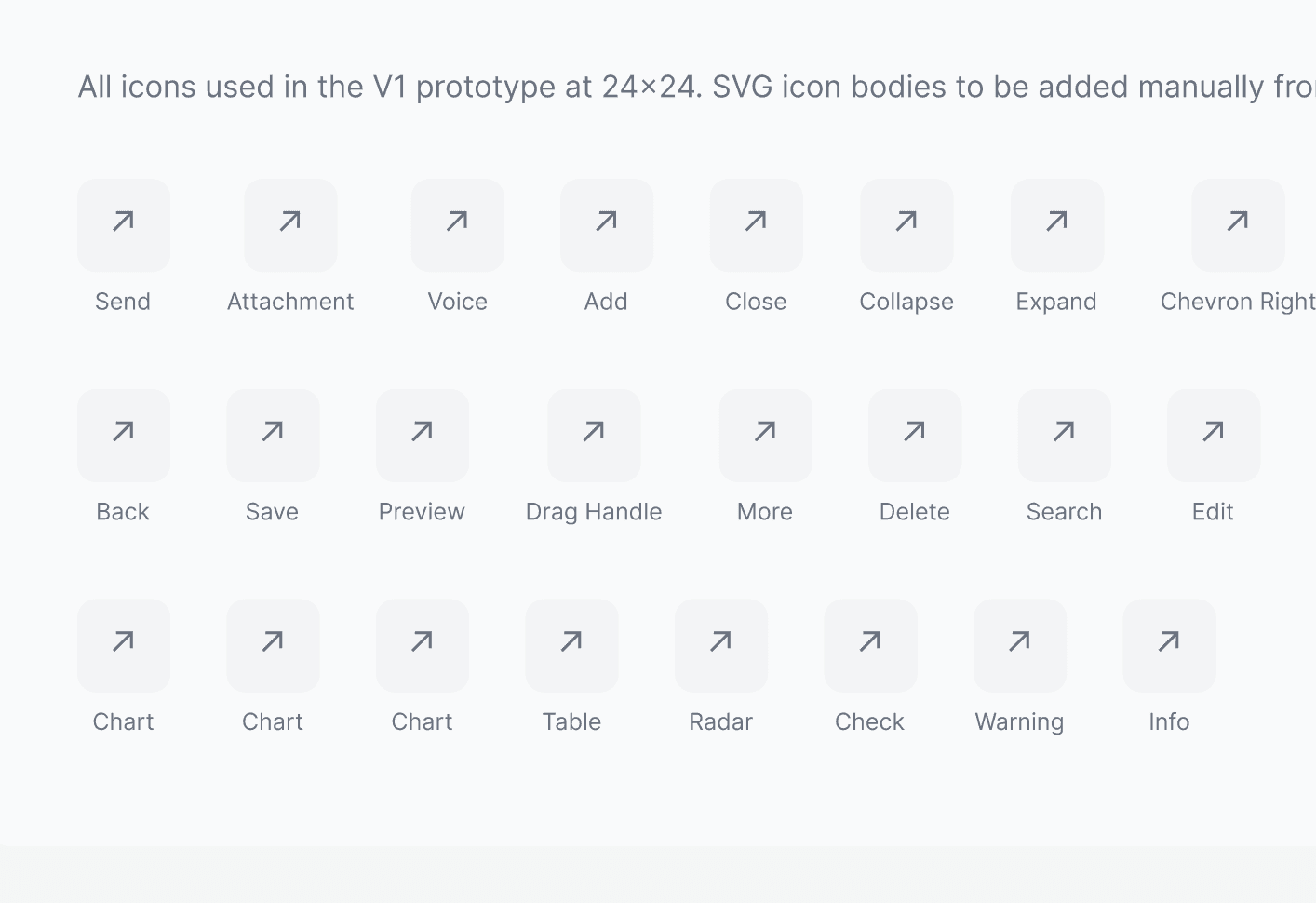
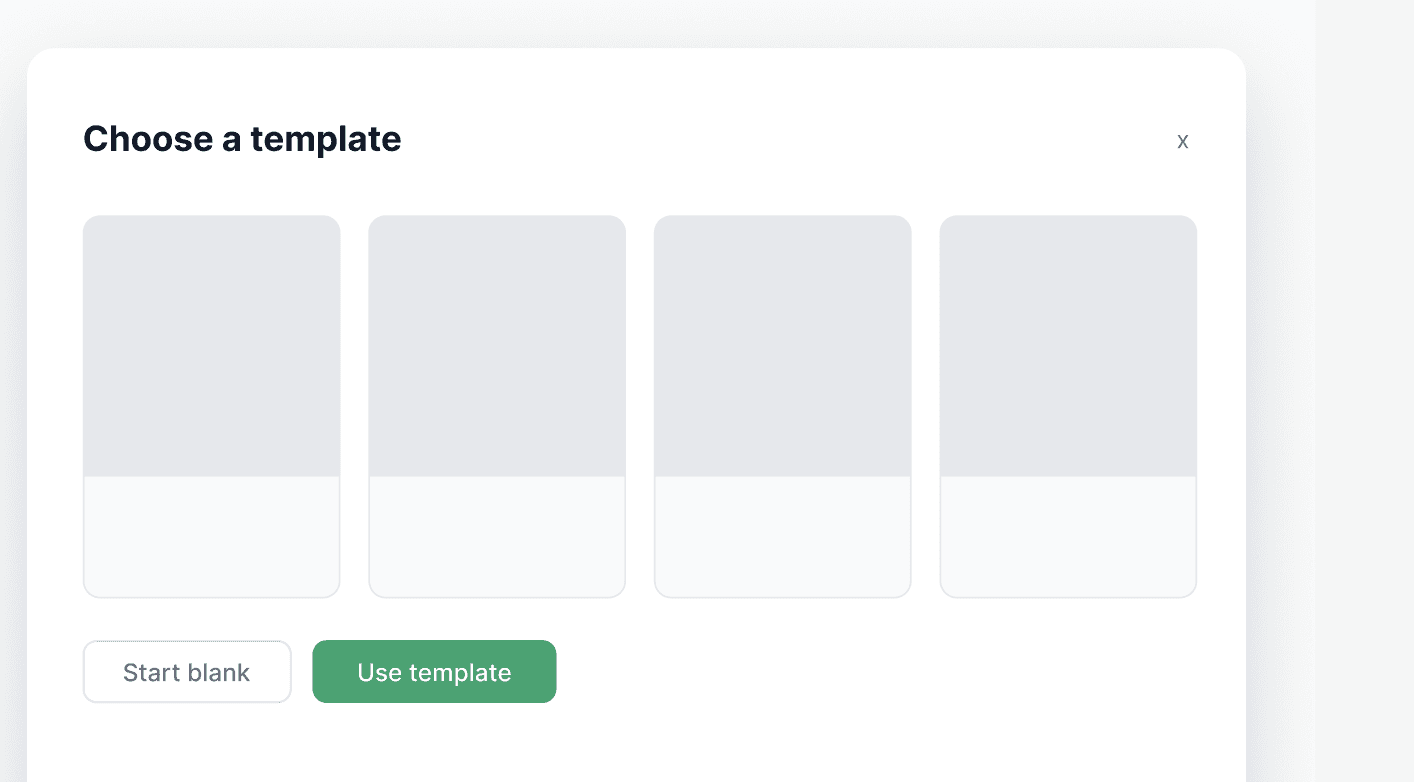
The system wasn't production-ready out of the box. Icons were generated as placeholder arrows instead of actual SVGs. Template cards came through as empty grey boxes with no content. Several components had broken auto-layout,
misaligned elements, and inconsistent spacing. These needed manual fixing in Figma.
Why It's Still Fine ✨
AI generated 80% of the system in minutes - tokens, typography, cards, buttons, navigation, chart containers.
The remaining 20% was pixel-level cleanup that any designer expects to do. AI isn't meant to produce pixel-perfect components yet. It gets you to the starting line fast, the last mile is still yours.
Screen Refinement
The screens didn't come out right on the first try.
Most of the work happened in the loop - prompt —> review —> push back —> refine.
(Describe, intent, constraints)
(Claude produces the HTML/CSS)
(Design system, UX)
(what's wrong + why)
(Iterate until finalised)
The screens didn't come out right on the first try.
Most of the work happened in the loop - prompt —> review —> push back —> refine.
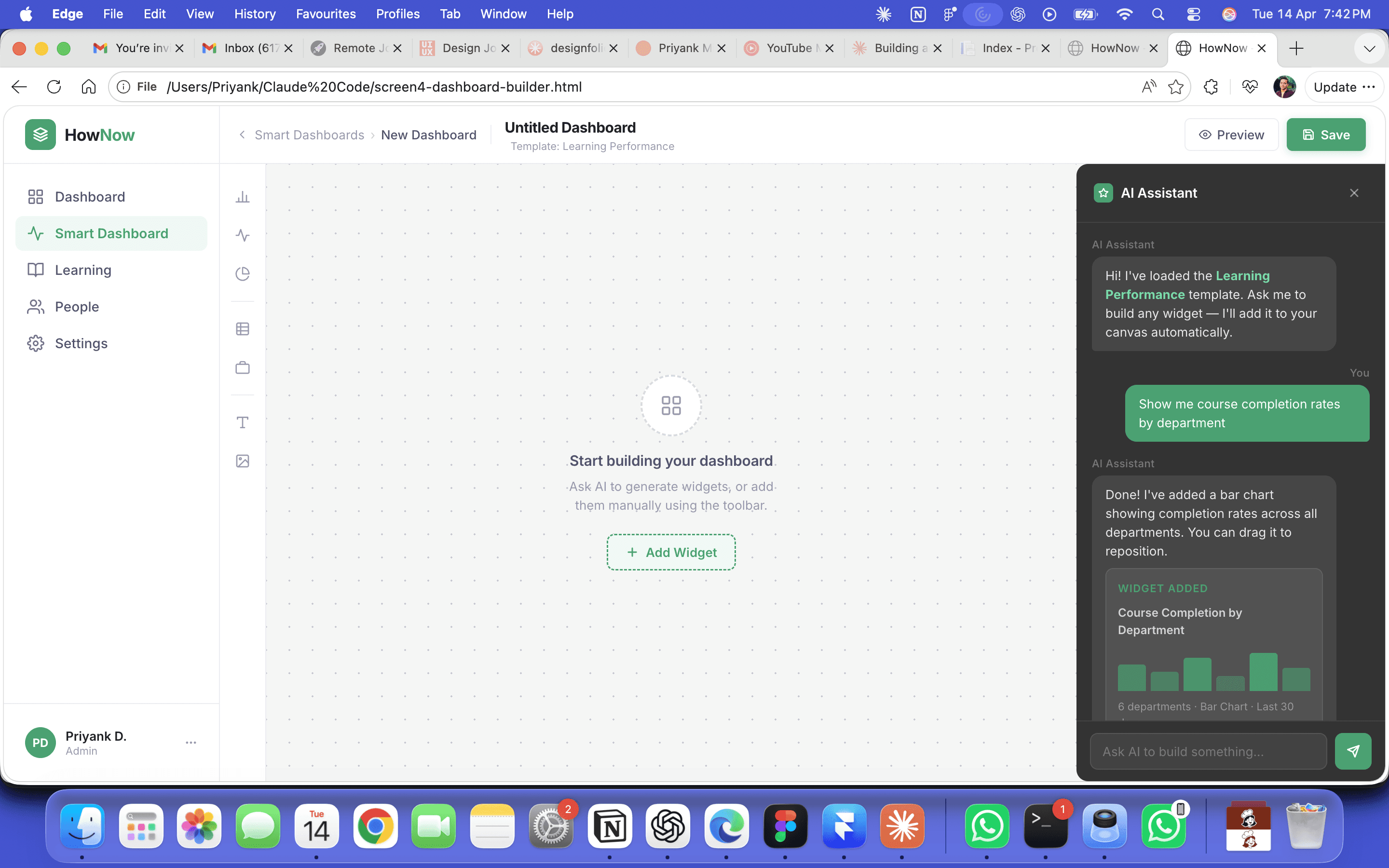
AI panel hierarchy was wrong
Claude reinterpreted the AI panel as a generic chatbox, breaking the screen's hierarchy.
Fix: Shared the original Figma screenshot and called out specific hierarchy issues. Rebuild held.
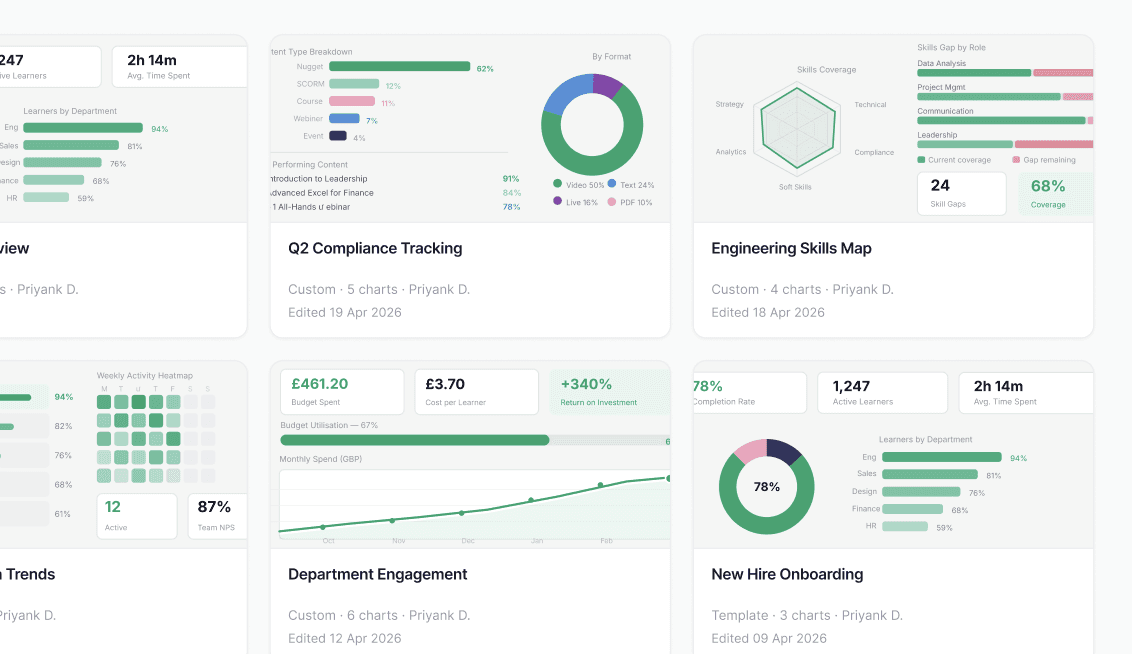
Switching tools when AI hit its limit
Claude couldn't produce realistic dashboard thumbnails after 3 attempts.
Fix: Moved the screen into Figma, fixed thumbnails manually, fed it back via MCP.
What AI was good at
Generating structure fast - usable layouts in minutes
Holding the design system - stayed consistent once given tokens
Producing realistic content - chart labels and copy that read like real product
What AI got wrong
Reinterpreting clear briefs - defaulted to its own assumptions on hierarchy
Visual fidelity on complex thumbnails - Figma had to take over
Generic AI patterns- reached for ChatGPT-style layouts when the product needed something more native
Final Screens and States
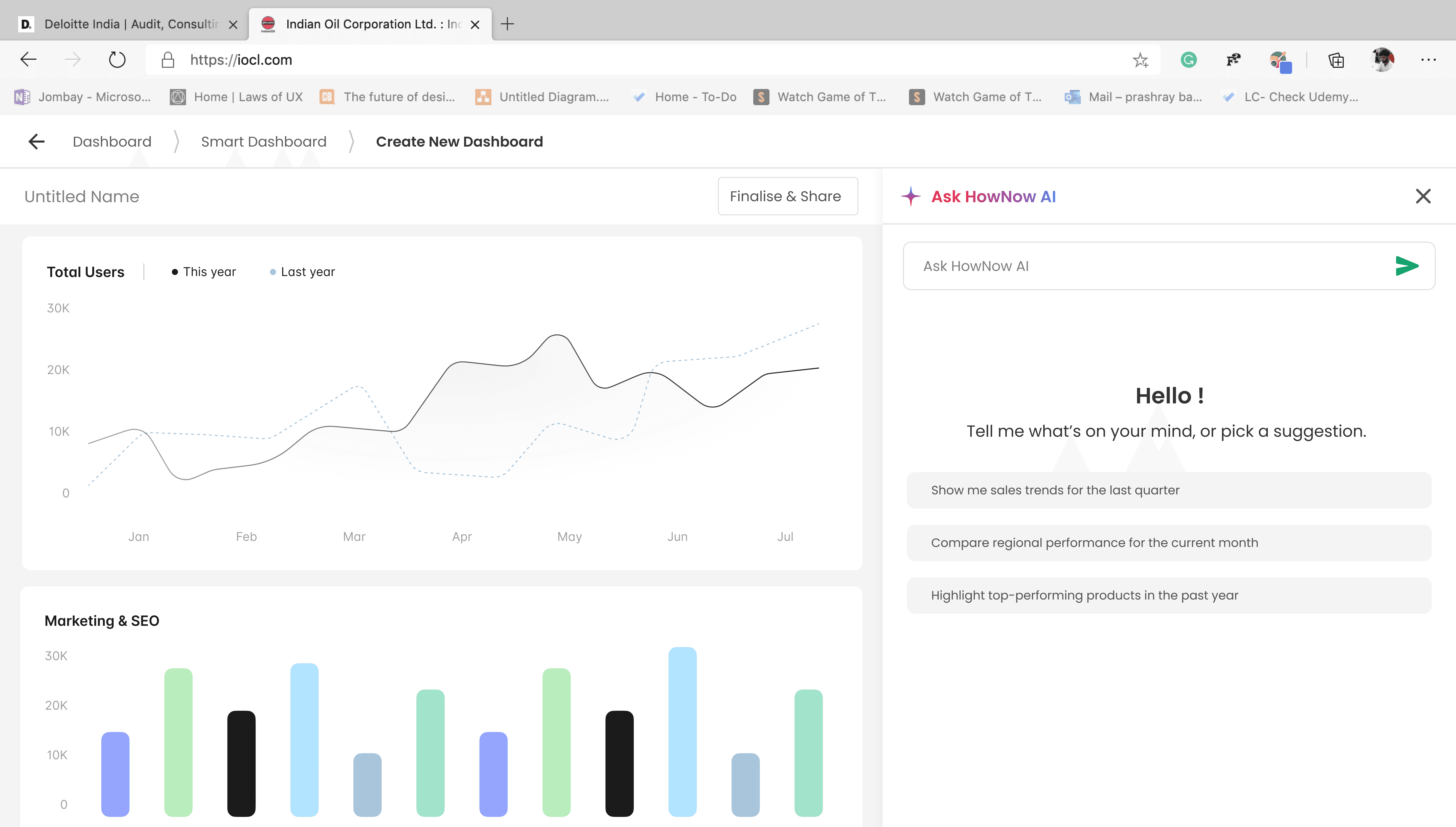
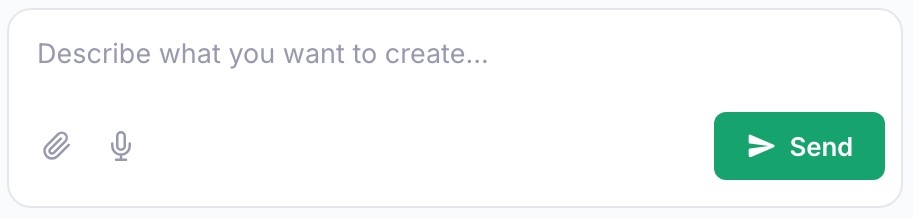
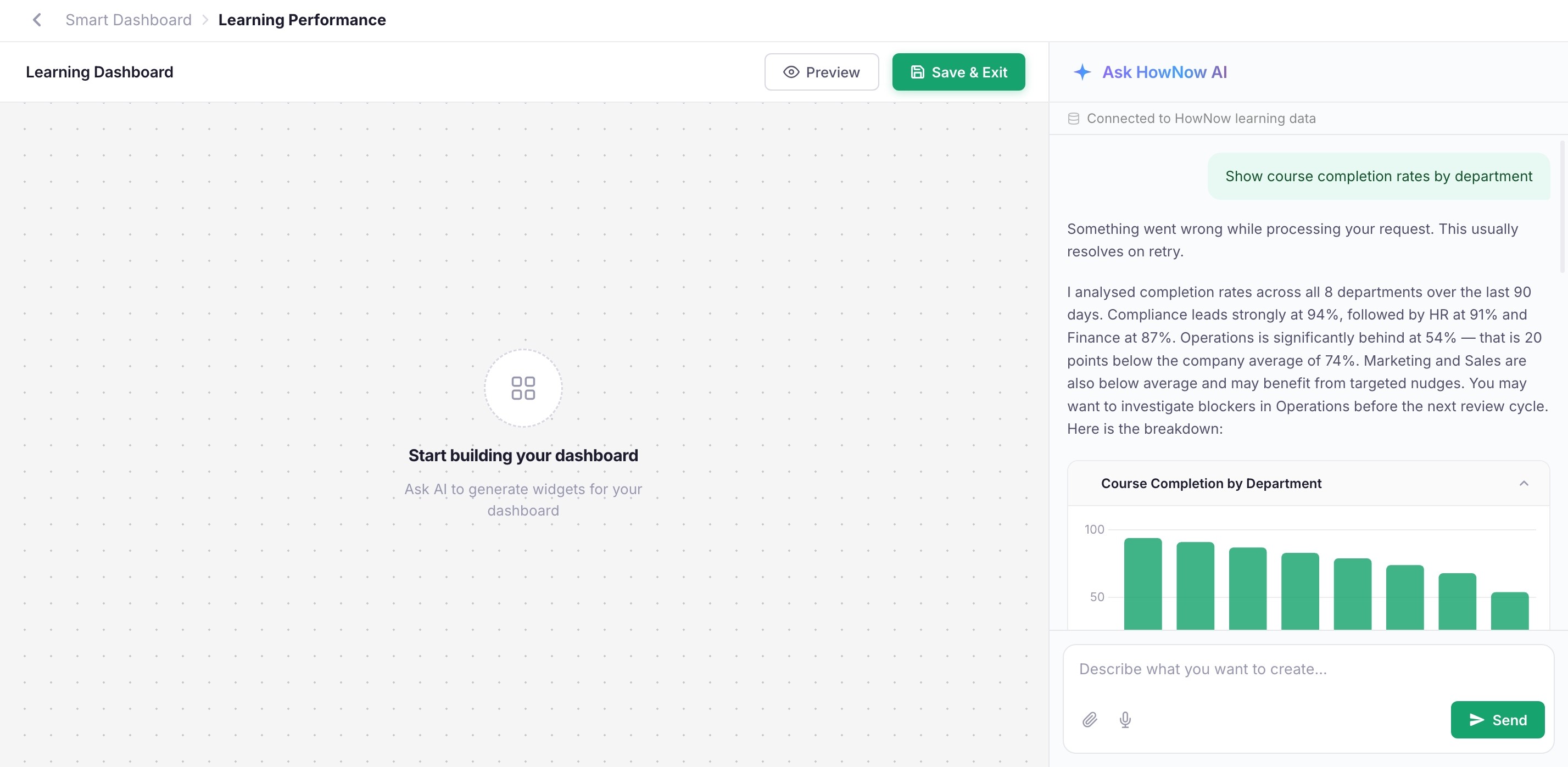
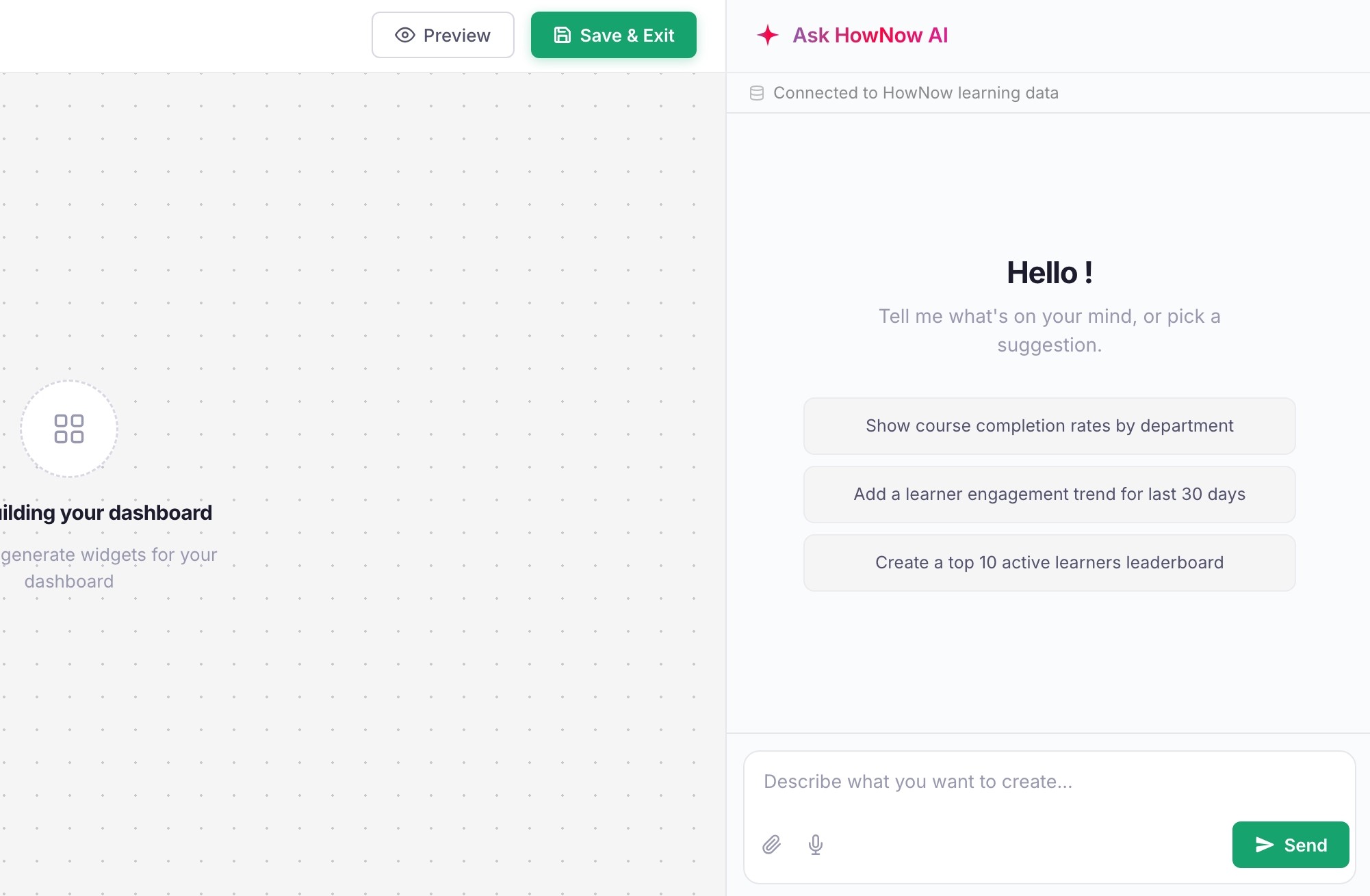
Empty panel · Generating · Response with chart · Chart picker open
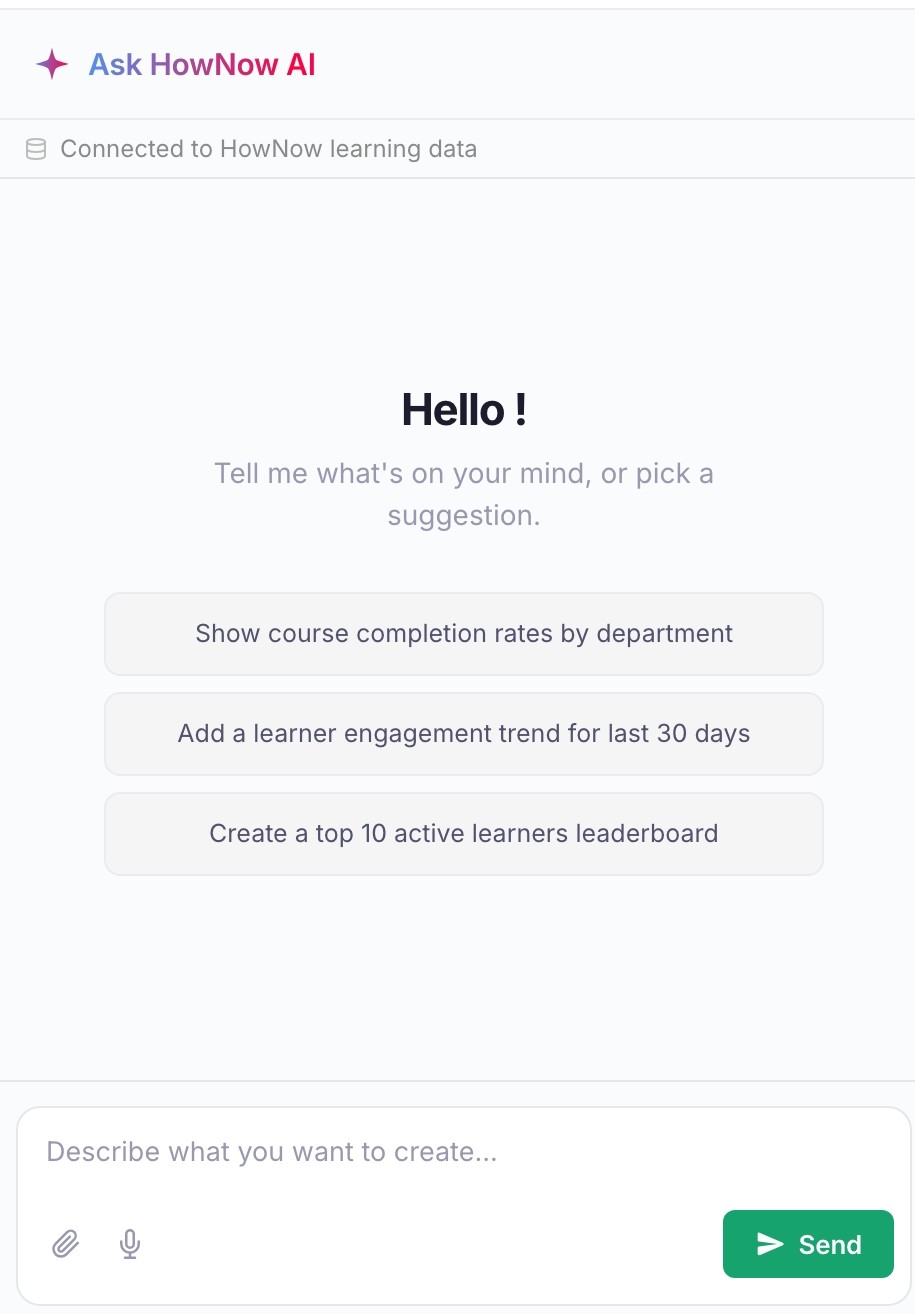
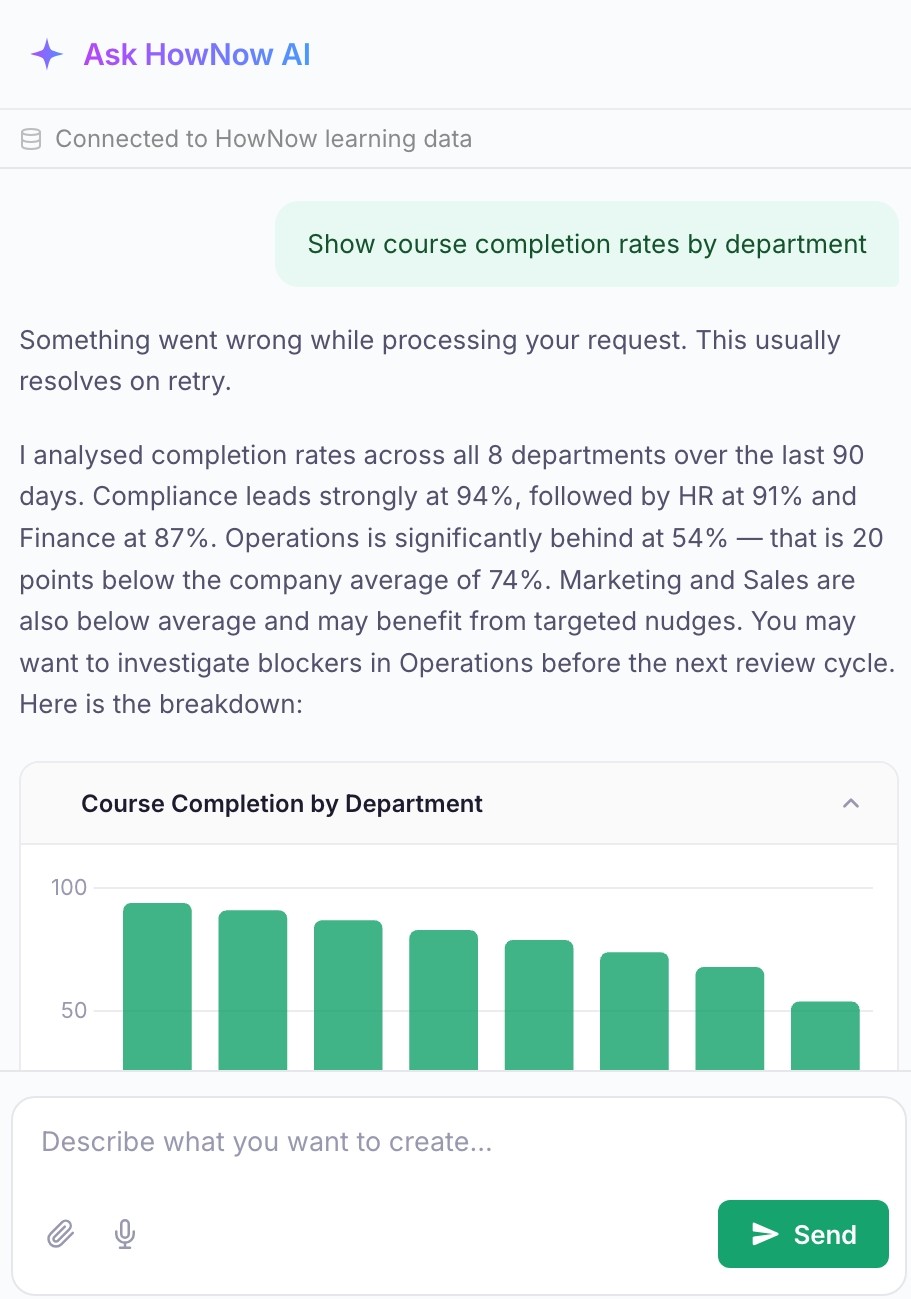
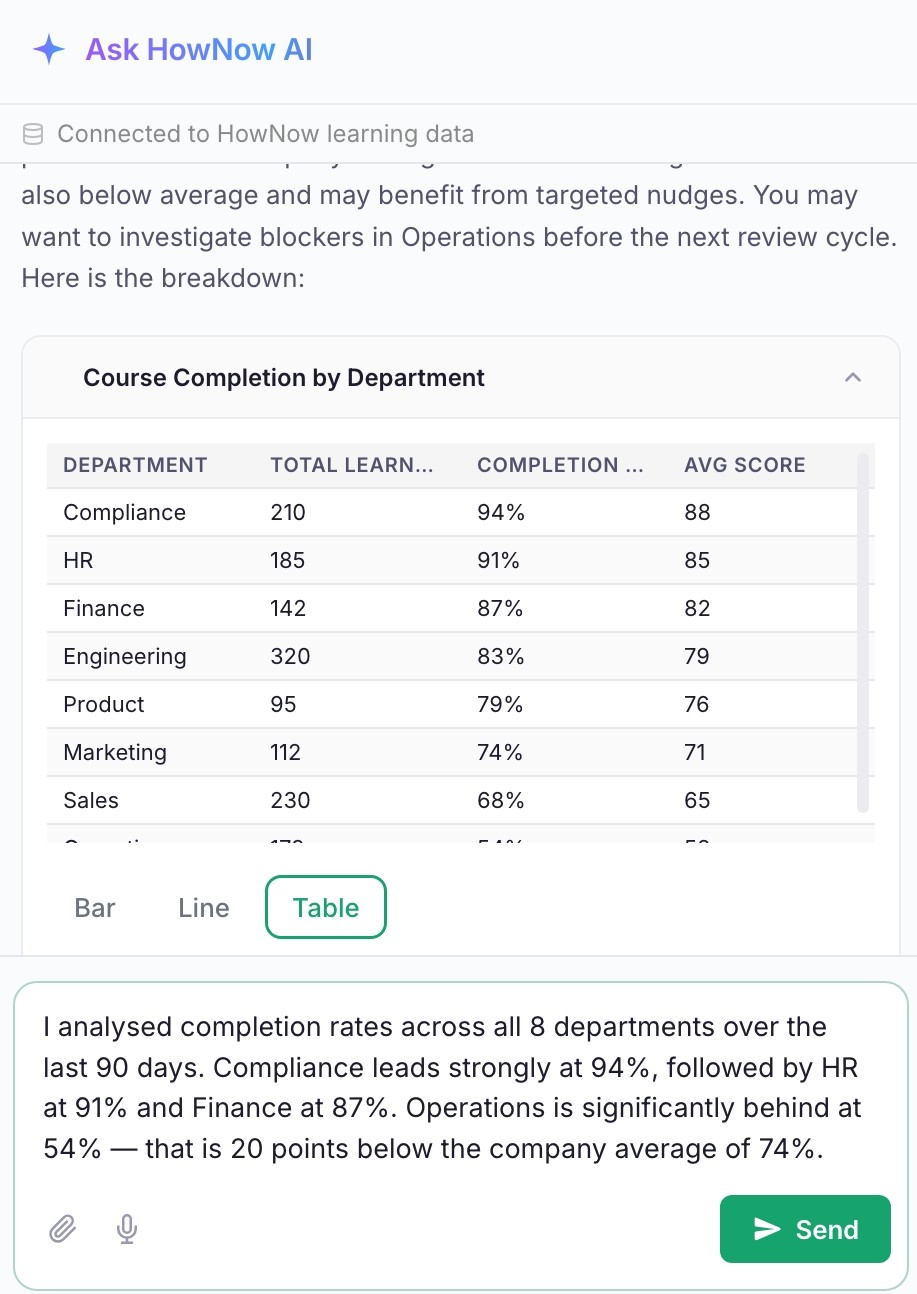
Chart added · Collapsible card · Multi-row drag-drop · Preview
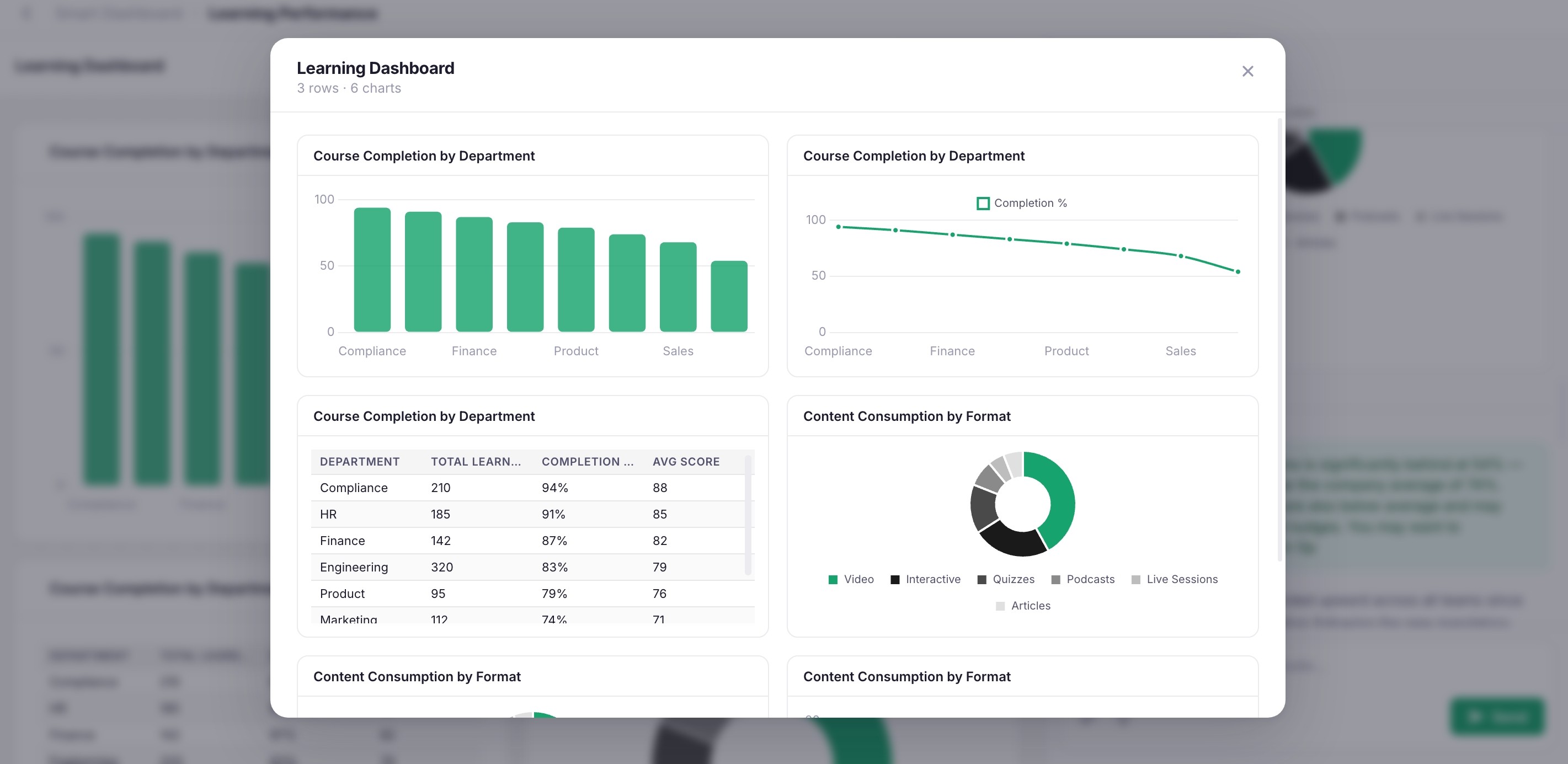
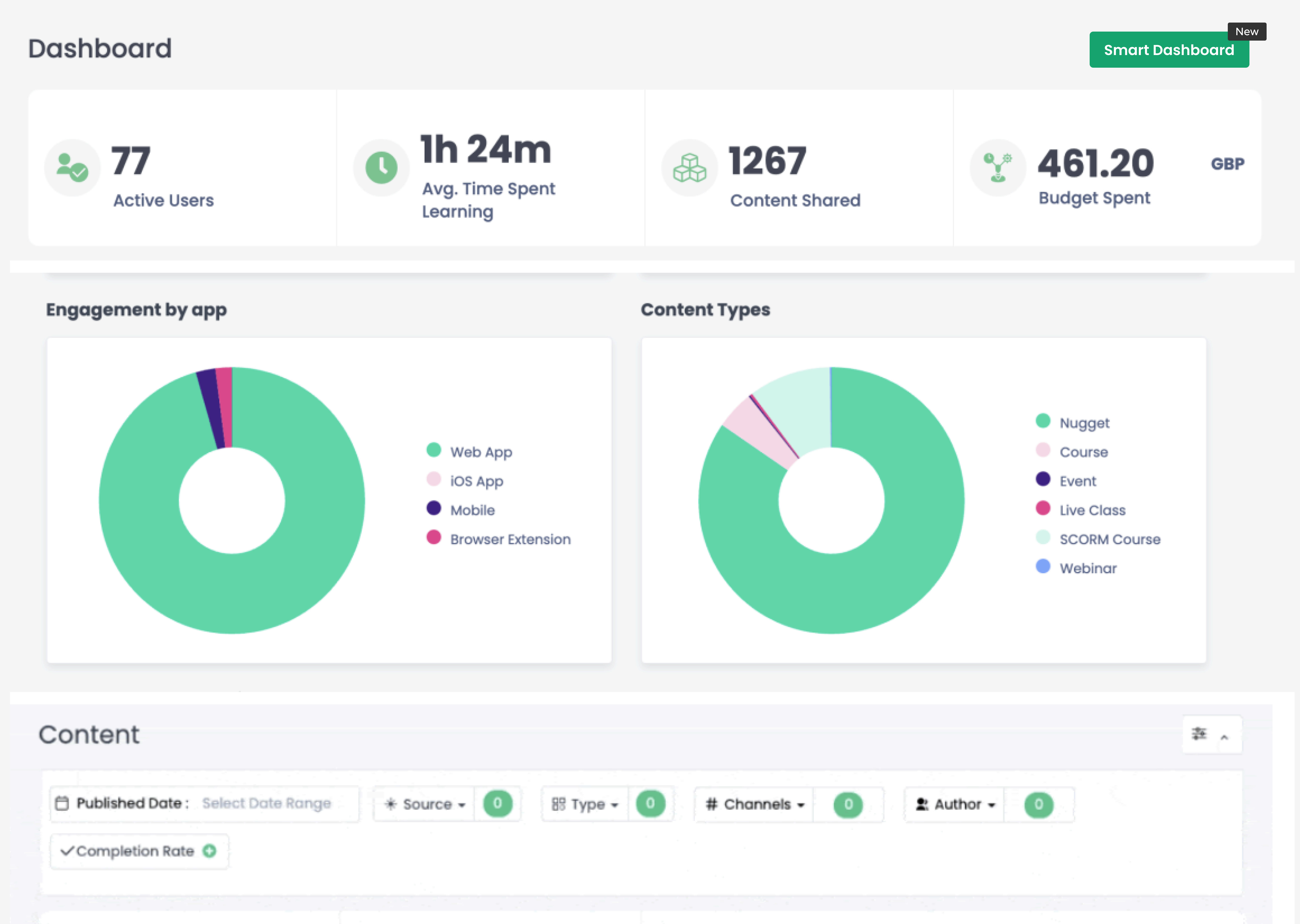
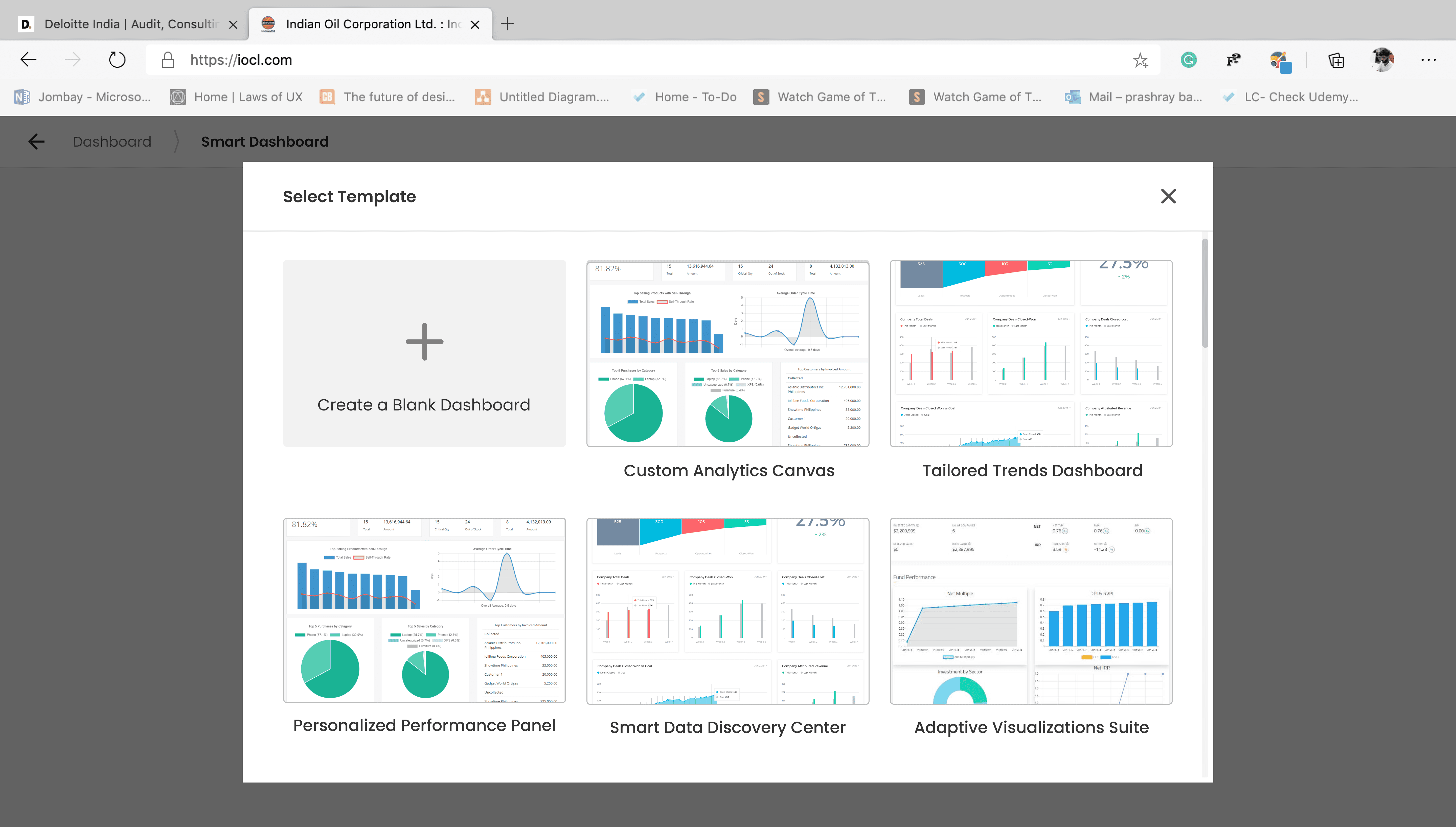
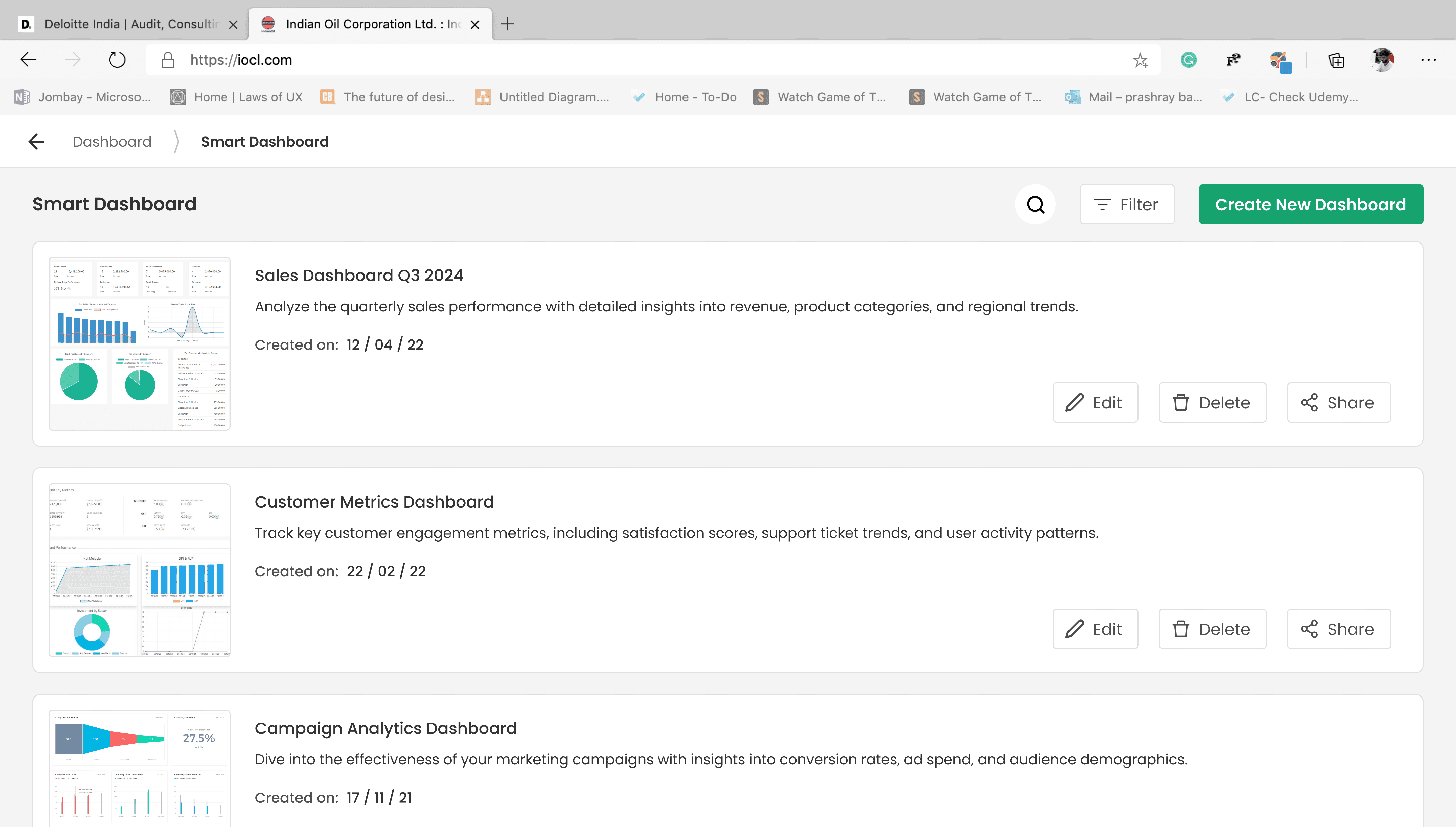
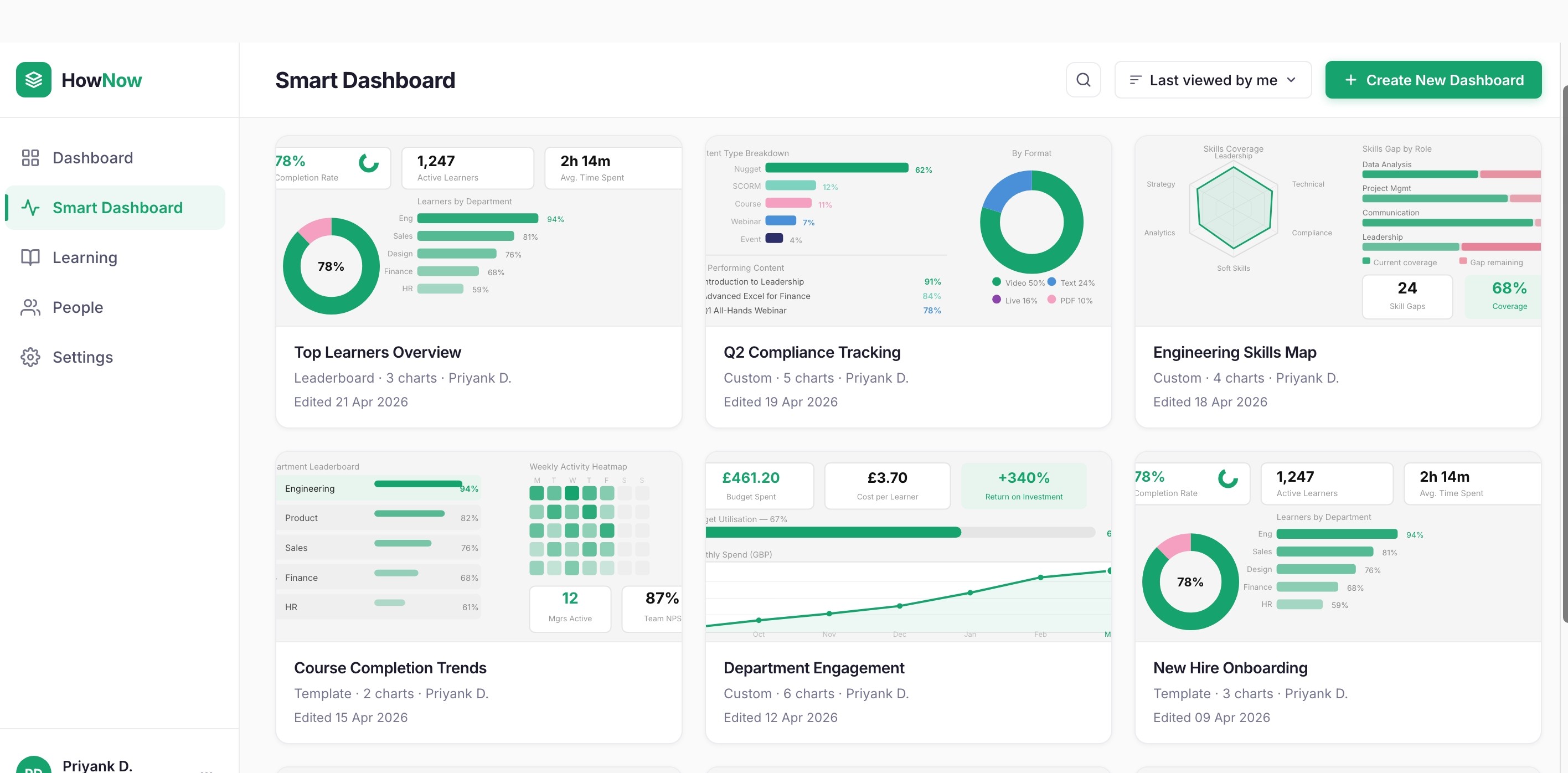
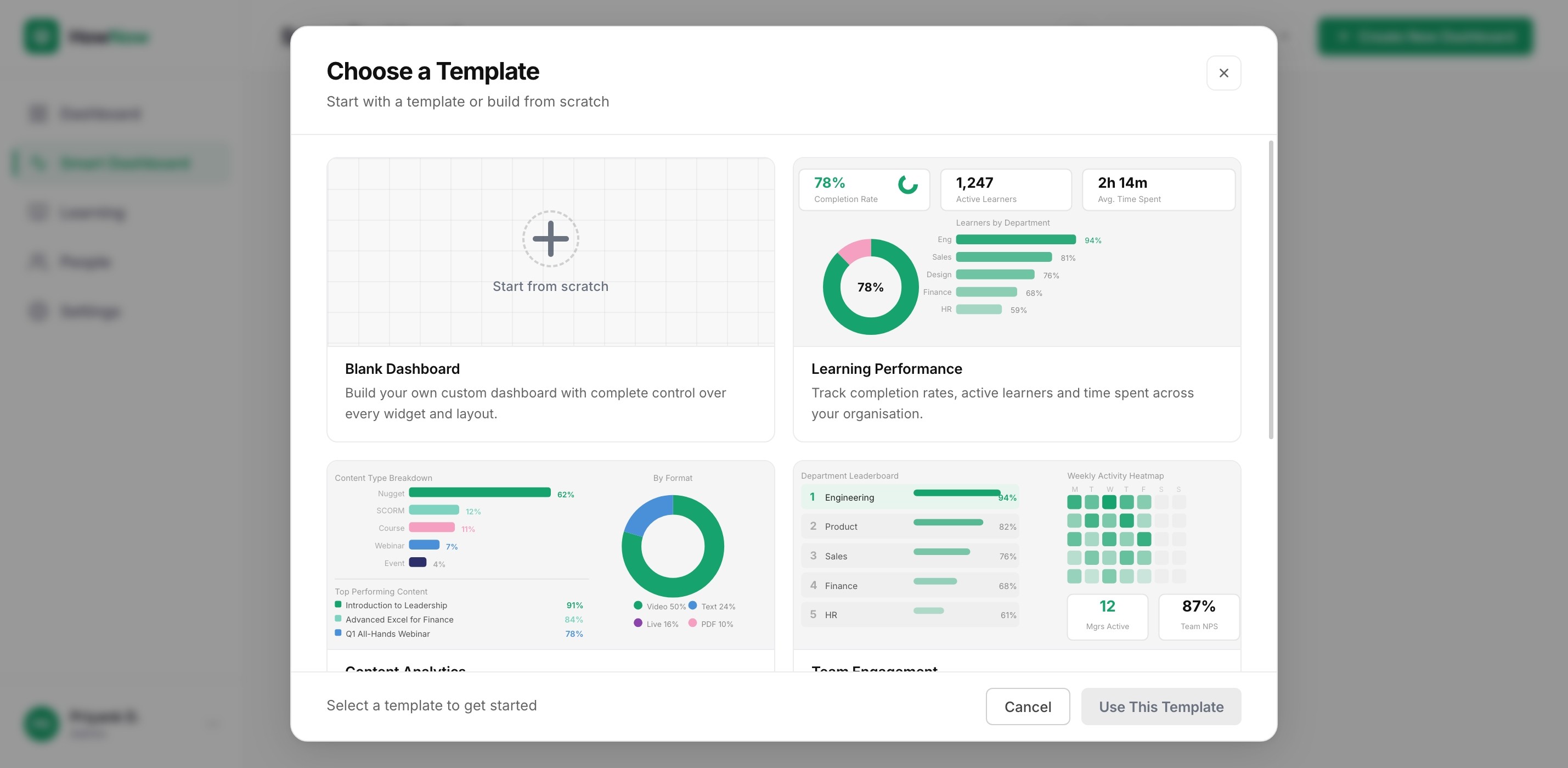
Smart Dashboard listing · Template selection
Empty results · Error · Ambiguous query
Heuristic Evaluation
I prompted Claude Code to audit the working prototype against Nielsen's 10 heuristics - a full review across every state, surfaced in minutes.
Audited
listing, editor, modals, and AI interaction
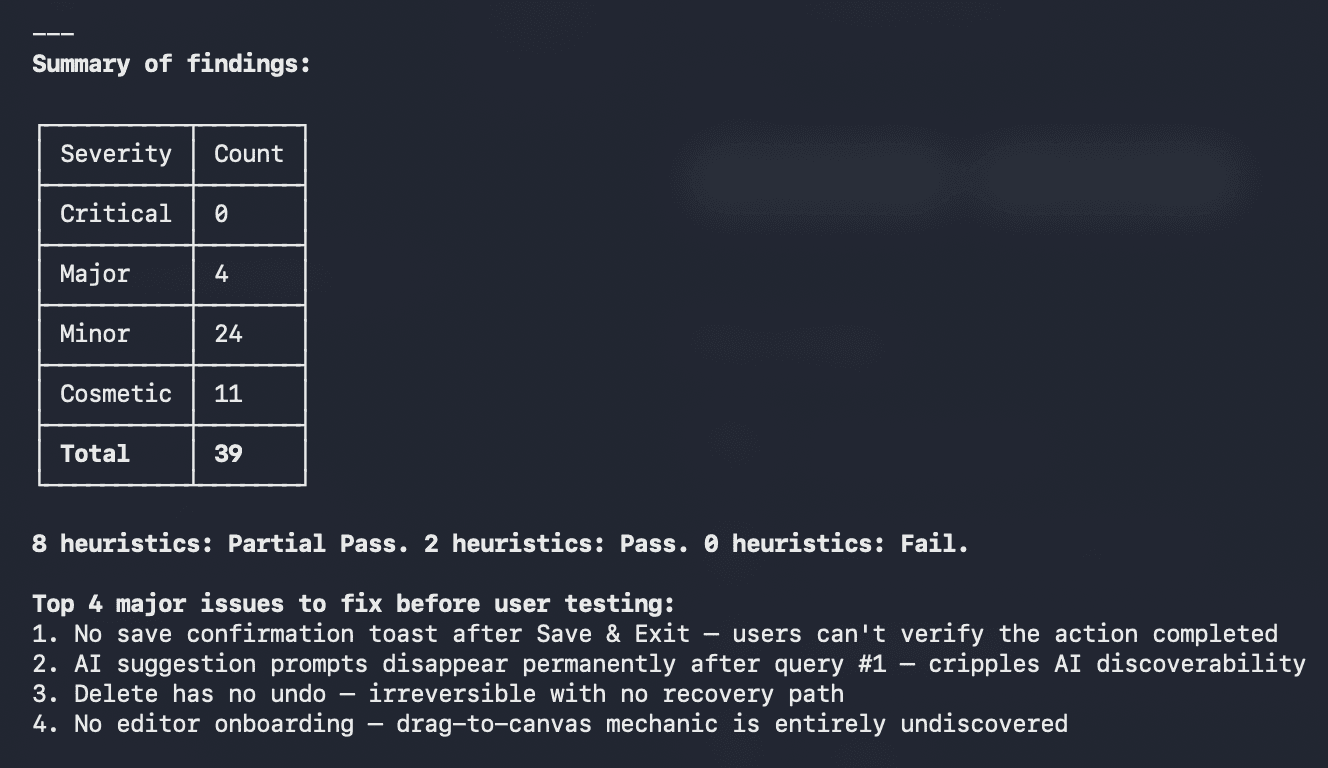
Issues identified 🚨 & Fixes Applied
No save confirmation toast
Save confirmation toast added ✅

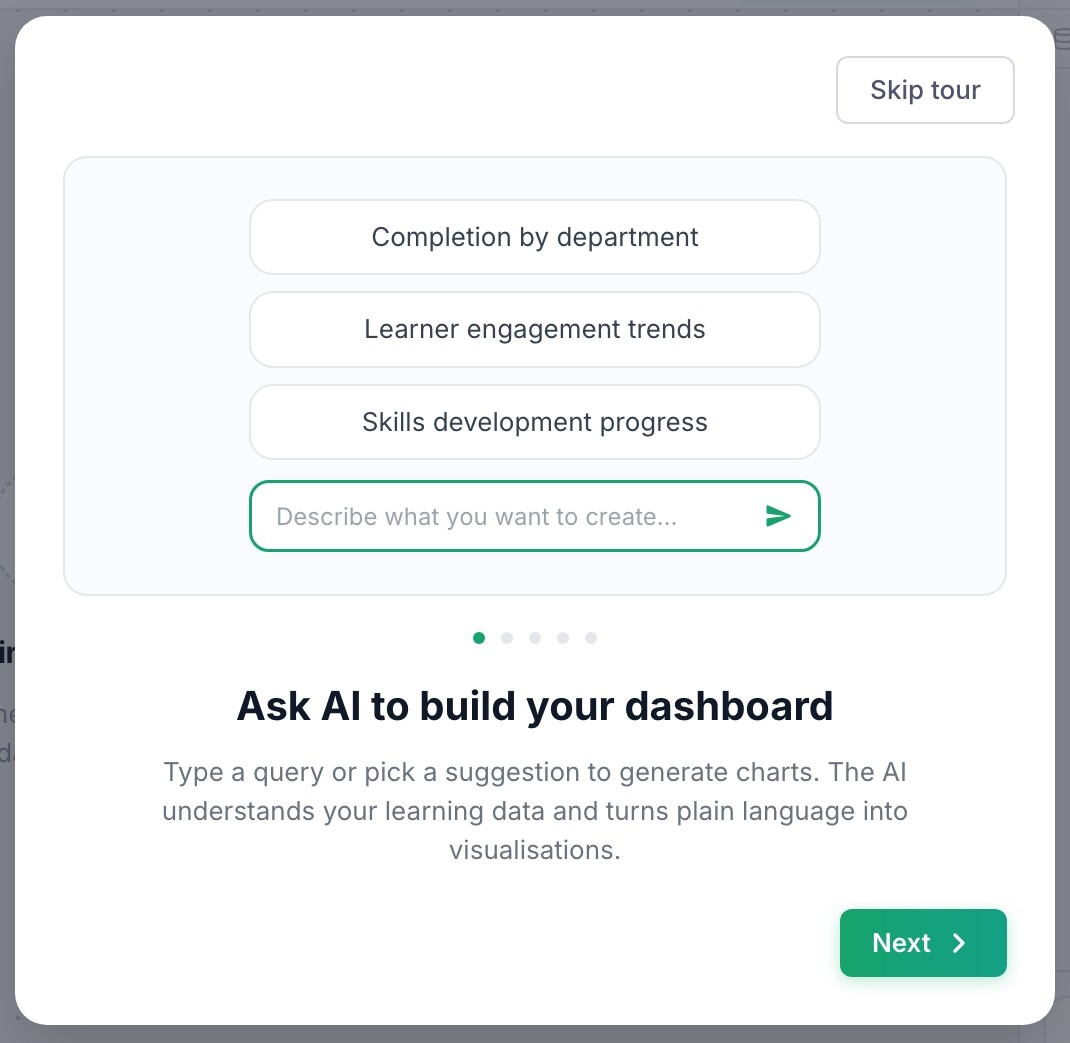
No editor onboarding
Onboarding tutorial added ✅
Delete confirmation has no undo
Undo option added ✅

AI suggestion prompts vanish after first query
Kills discoverability
Accessibility Audit
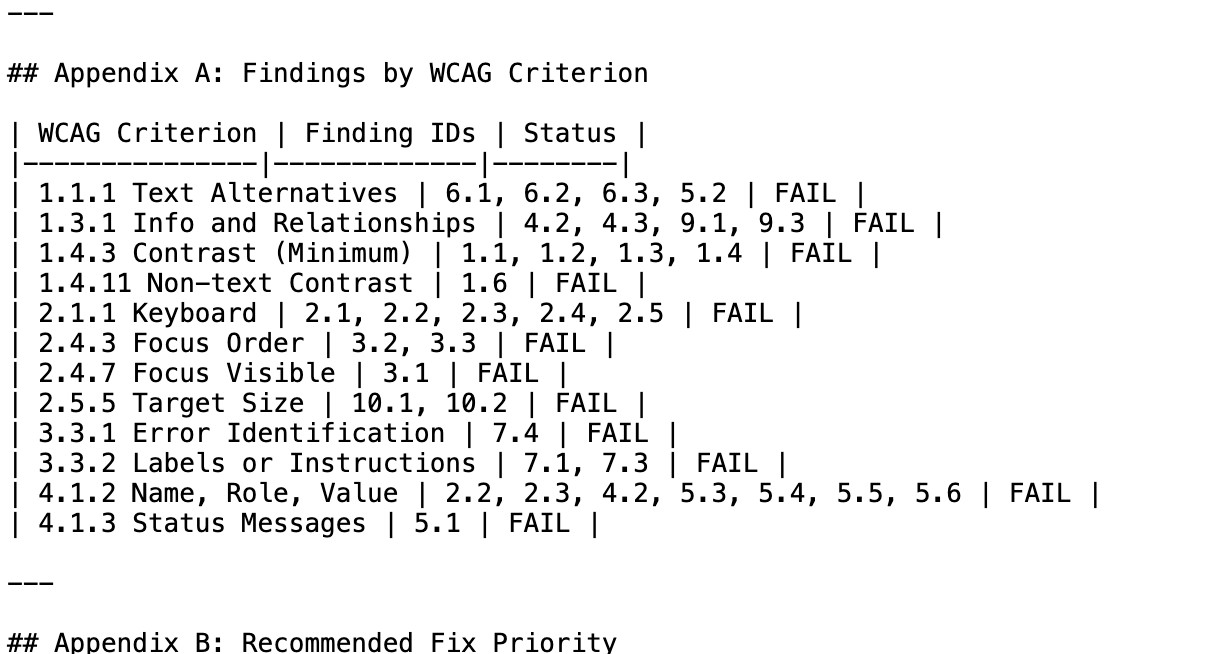
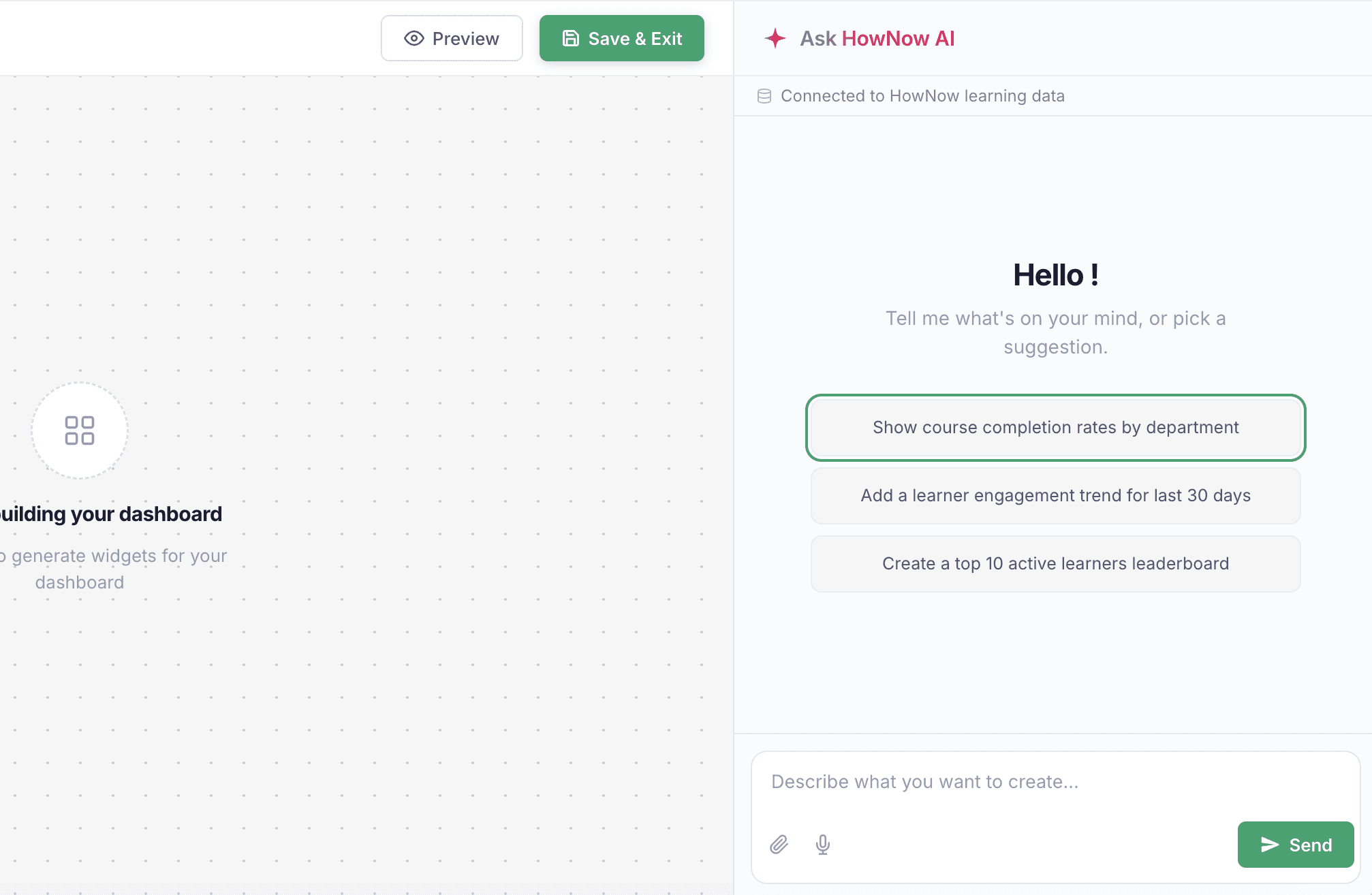
I prompted Claude Code to audit the prototype against WCAG 2.1 Level AA - colour contrast, keyboard navigation, focus states, ARIA, semantic HTML, motion, headings, and touch
targets - across every state.
Audited listing, editor, modals, and
AI interaction states
Final Interactive Prototype
The end-to-end flow, built in HTML and CSS - from dashboard listing through template selection to the AI query panel and dashboard canvas. Every state, interaction, and edge case from the previous sections, working live.
Full flow - Dashboard → Smart Dashboard listing → Template selection → Editor with AI panel → Save → Listing populated
13 states - every state from Section 7 reachable in the live prototype
Real interactions - drag-and-drop with progressive row reveal, chart type switching, collapsible cards, AI streaming responses, conversational follow-ups
Key Outcomes
This project demonstrated how AI-assisted workflows can significantly accelerate early-stage product exploration.
4x Faster
Iteration speed compared to a traditional design process
< 24 Hours
From idea to interactive prototype
0 Engineering Dependency
Prototype built and tested independently
While this project was built using Claude Code and Figma, emerging AI tools will continue to reshape how products are designed and prototyped, making experimentation faster and more accessible than ever.